Metering modes and the histogram explained
by Konstantin Voronov · Photography Tips
In short: The camera meter reads reflected light and assumes a mid-gray scene, so snow comes out gray and black backgrounds come out too bright. Metering modes choose what the meter reads: the whole frame (matrix), the center (center-weighted), a small spot (spot) or the highlights (highlight-weighted). The histogram and highlight warnings then show whether detail was lost.
The camera has a very accurate tool for measuring the brightness of a scene. To get good photos every time, you need to learn to work with it. How metering fits into exposure as a whole is in the exposure triangle explained. The camera can measure exposure in different modes, used in different shooting situations.
Metering modes compared
Editor's note: the makers name the same modes differently. The Nikon names come from the lessons below; the Canon and Sony names and the spot sizes for Canon come from the Canon EOS 5DS support page and the Sony ILCE-7RM3A Help Guide.
| What the meter reads | Nikon | Canon | Sony | Use it for |
|---|---|---|---|---|
| The whole frame, divided into zones | Matrix | Evaluative | Multi | Most scenes: reportage, walks, travel |
| A large central circle, center weighted most | Center-weighted | Center-weighted average | Center | Subjects in the middle of the frame |
| A larger central area (about 6.1% on the Canon EOS 5DS) | Partial | Backlit subjects against a bright background | ||
| A small spot (about 1.5% on advanced Nikons, 1.3% on the Canon EOS 5DS) | Spot | Spot | Spot | High-contrast landscapes, faces in portraits |
| The brightest parts of the frame | Highlight-weighted | Highlight | RAW shooting where highlights must keep detail | |
| The whole frame, averaged evenly | Entire Screen Avg. | A stable reading when the composition changes |
Matrix metering

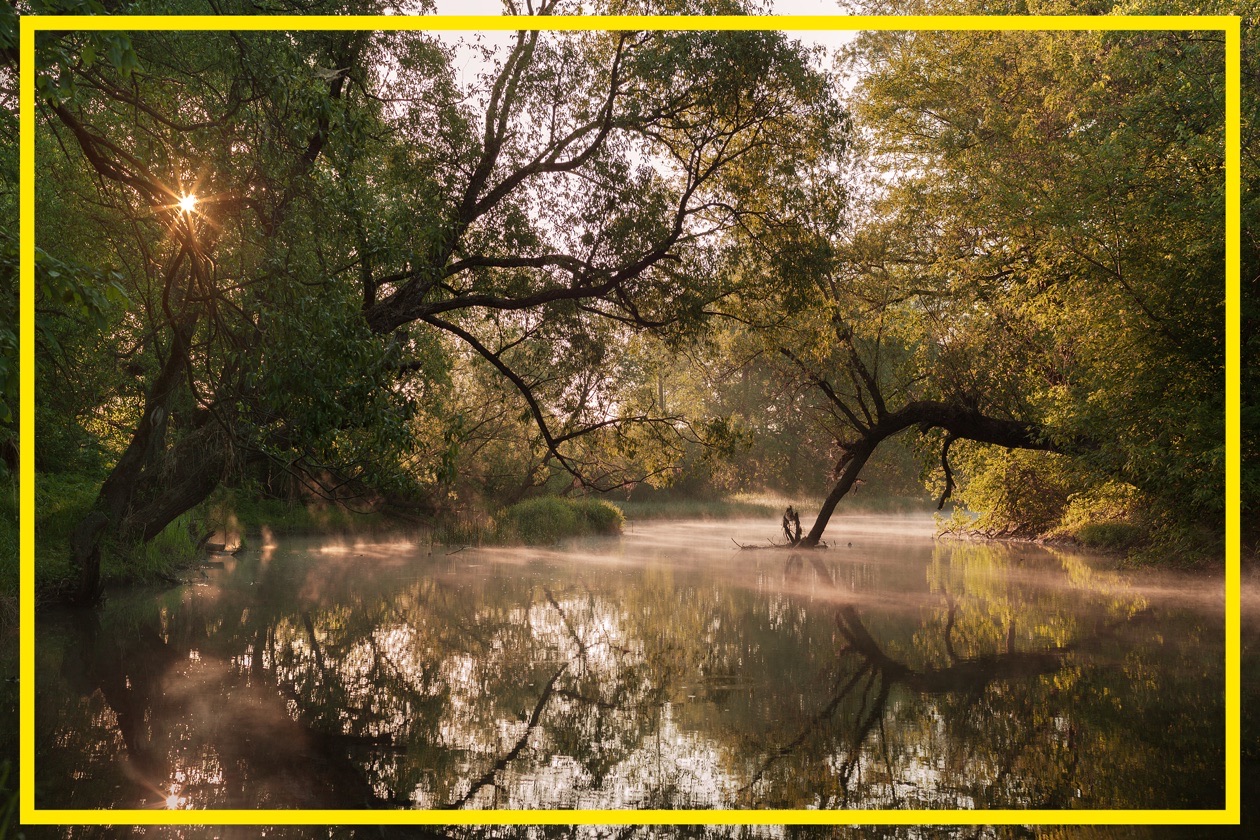
The best metering mode for beginners is matrix metering, also called evaluative or multi-segment metering. The brightness of the scene is measured across the whole frame, with the largest number of sensors. The readings from each sensor (remember that, depending on the camera model, there can be tens of thousands of them) are analyzed, and the camera works out the best exposure. The methods for analyzing this data keep improving and getting smarter, and the number of metering sensors keeps growing. All of this makes matrix metering more accurate with each new generation of cameras.
Today matrix metering almost always gives a correct exposure. Small difficulties can arise in situations that are unusual for the automation. One example is photographing a person indoors against a window. Here the camera cannot tell for sure what we are shooting: the landscape outside lit by the midday sun, or the person dimly lit by room light. It can solve the problem in different ways depending on the situation and the composition. Shooting against a white or black background can also be difficult: the camera will try to bring the dominant tones in the frame to gray. So frames against a white background come out too dark, and against a black background too bright. Test shots followed by exposure compensation, or other metering modes (spot, for example), solve the problem.
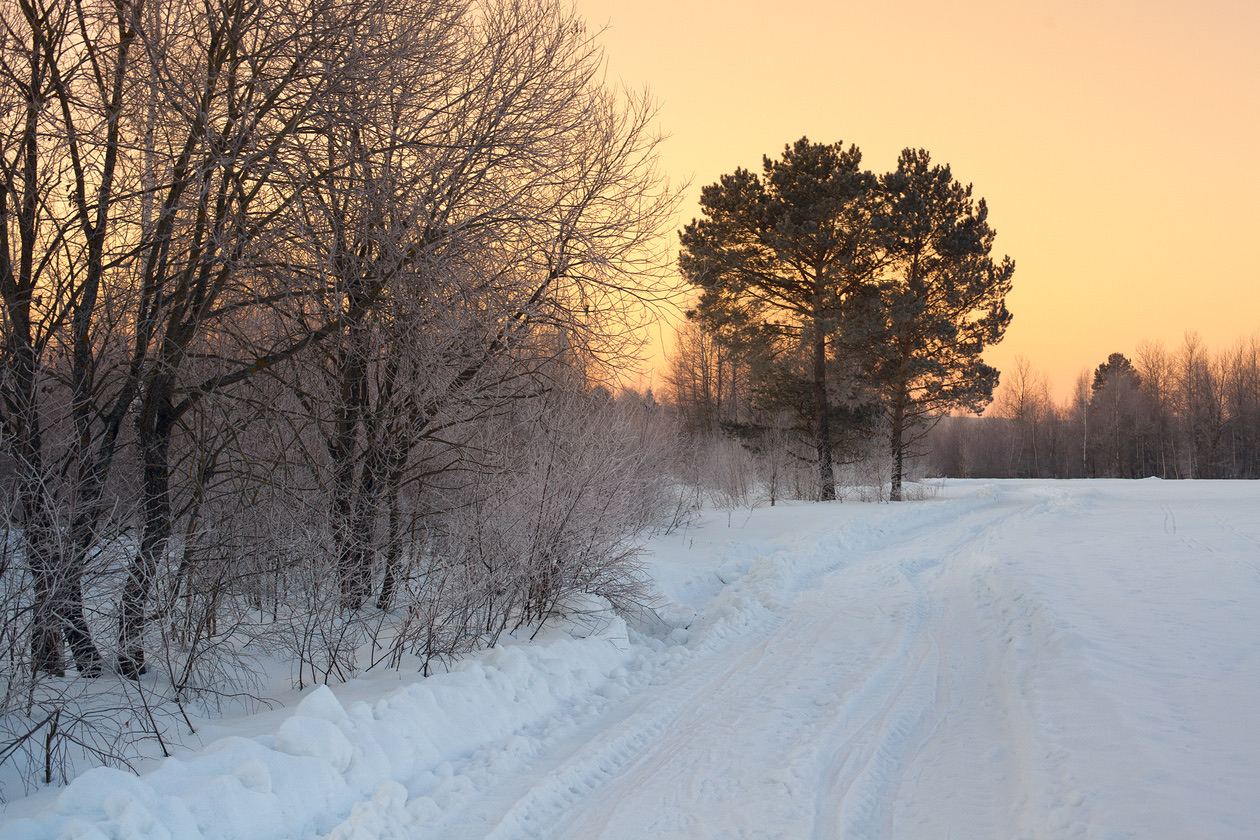
When should you use matrix metering? It suits most shooting situations. It is the best choice for active reportage, photo walks, family photo sessions and travel.
Spot metering

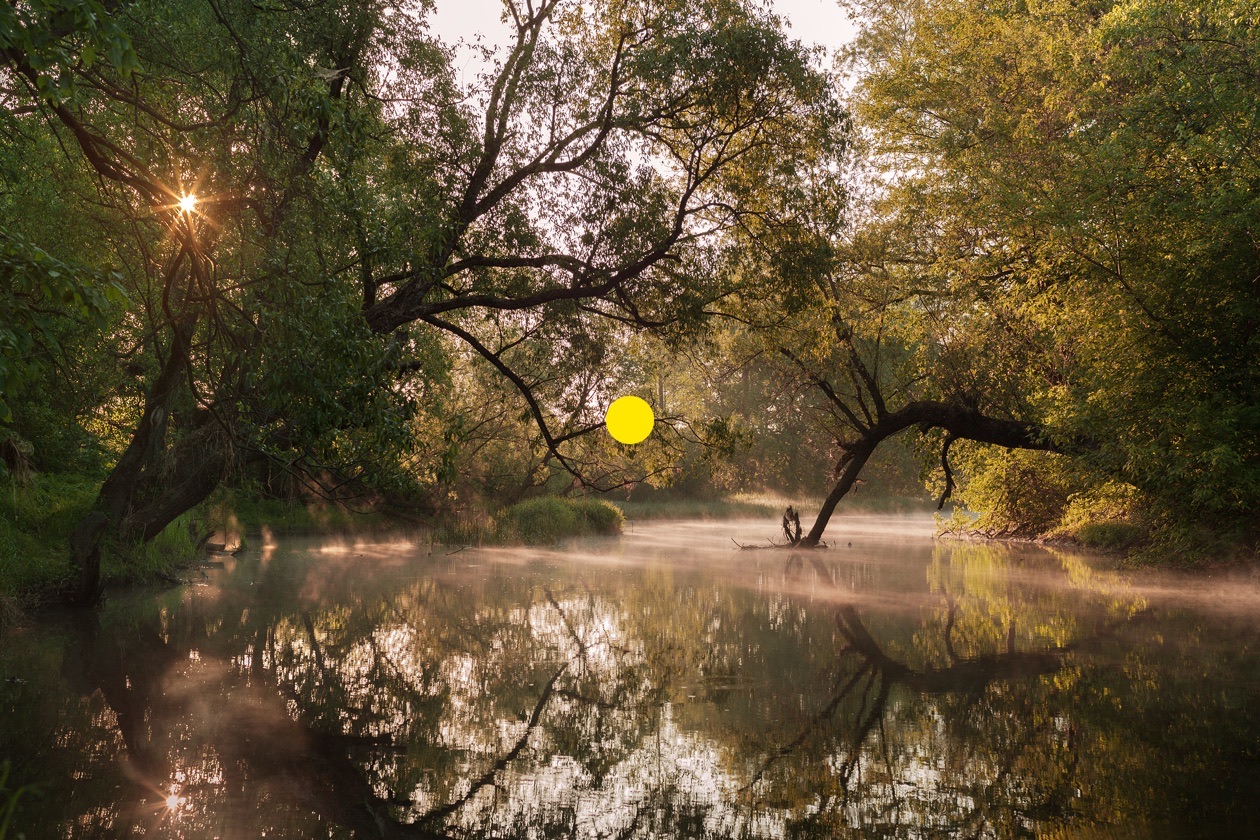
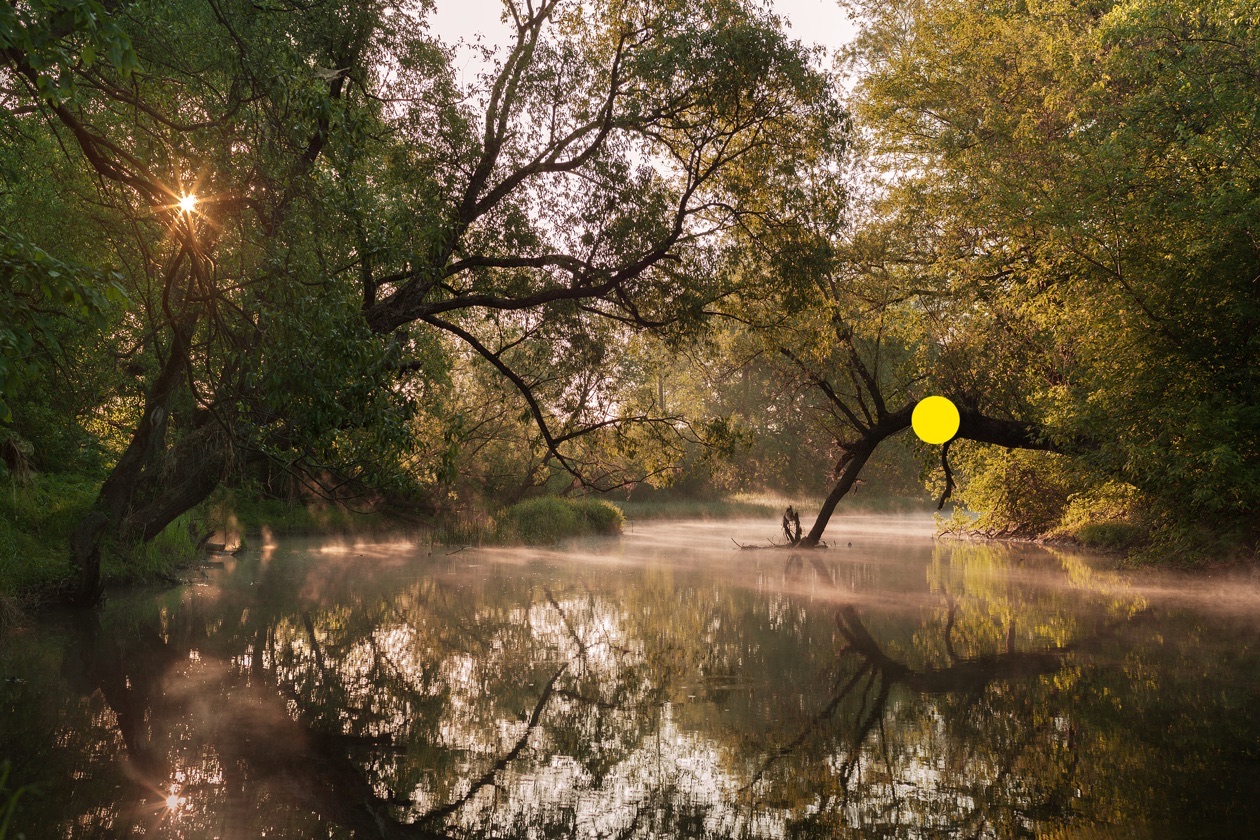
Spot metering is fairly difficult to use but the most precise metering mode. The brightness of the scene is measured in a small area, a spot. On Nikon cameras this spot sits in the same place as the active autofocus area. Because the measurement covers only a very small fragment of the picture, you need to choose the metering area carefully. If you thoughtlessly point the spot at whatever happens to be there, the result will most likely be poor and the frame wrongly exposed. Meter on midtone areas of the picture, because the camera assumes that you are "showing" it a midtone object and measures the exposure on that basis.
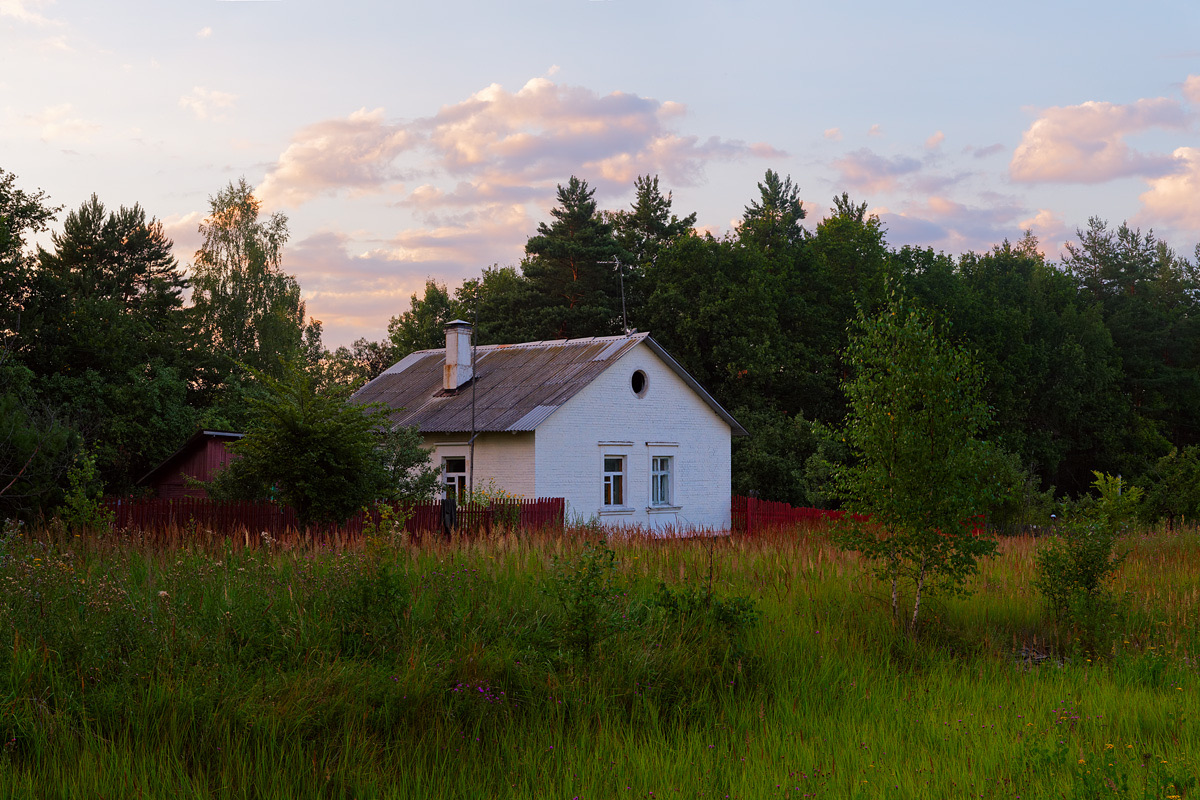
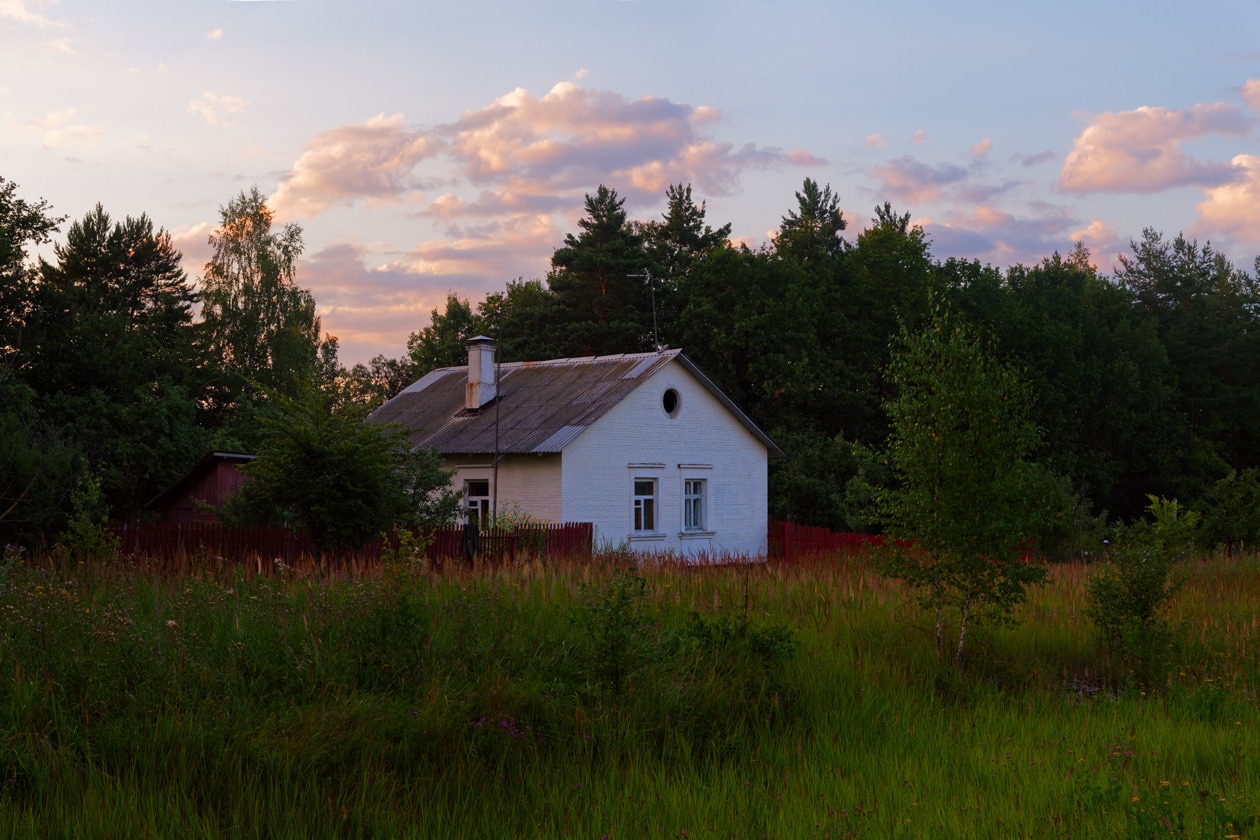
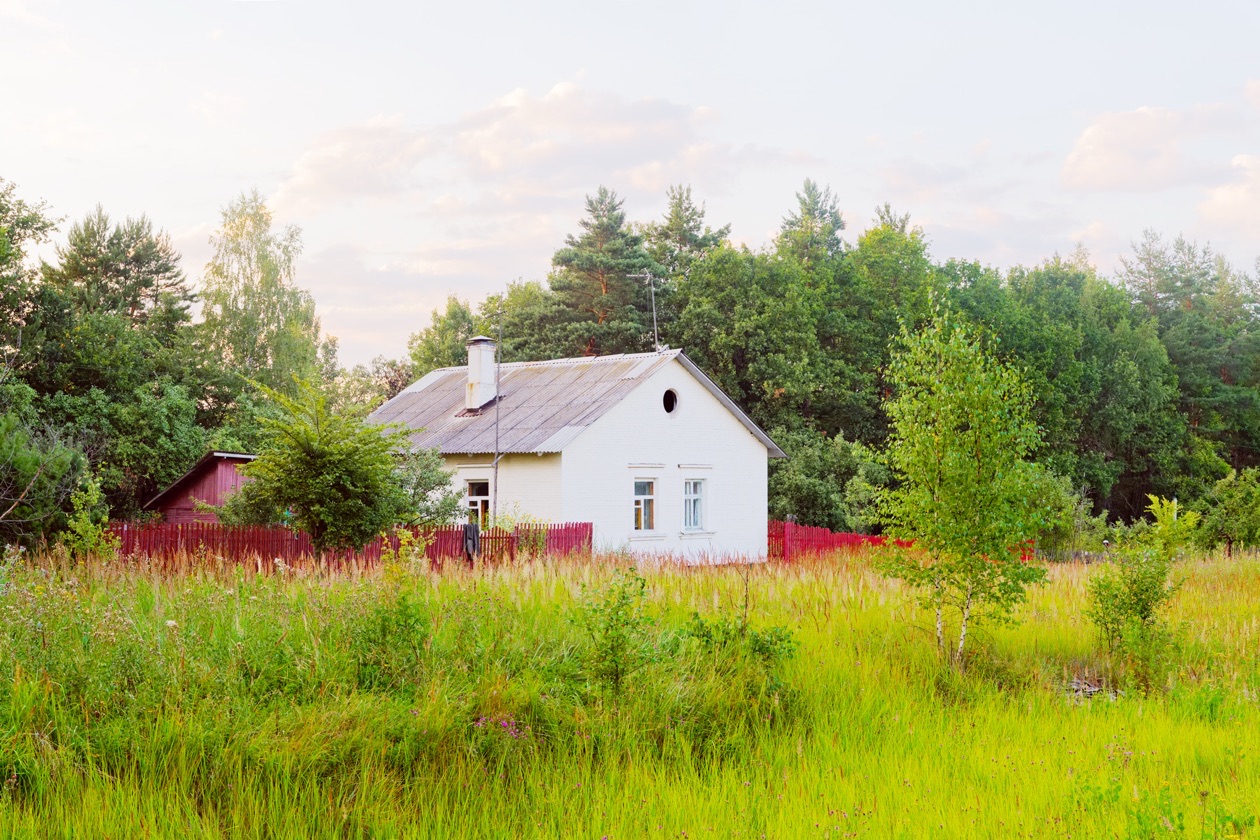
For example, when photographing this house, do not meter on its white wall (the picture would be too dark) or on the dark forest (the frame would be overexposed). It is better to use midtone parts of the scene. The ideal choice is the slate roof of the house.
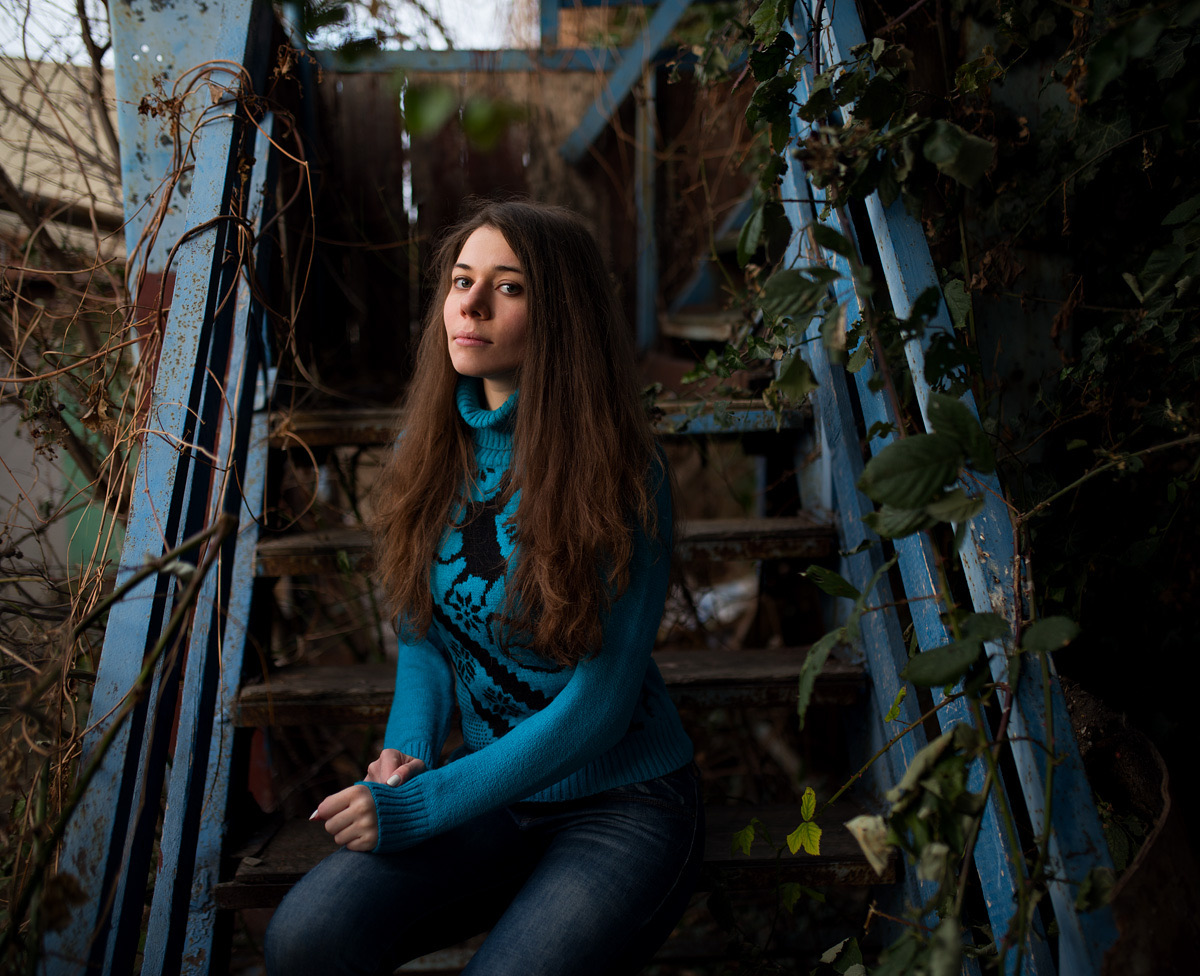
Spot metering also works for portraits. It is convenient when the metering spot follows the focus point, as on Nikon cameras. Since faces are usually midtone in brightness, spot metering on the face generally works correctly. But for a person with dark skin, consider a small amount of minus exposure compensation.
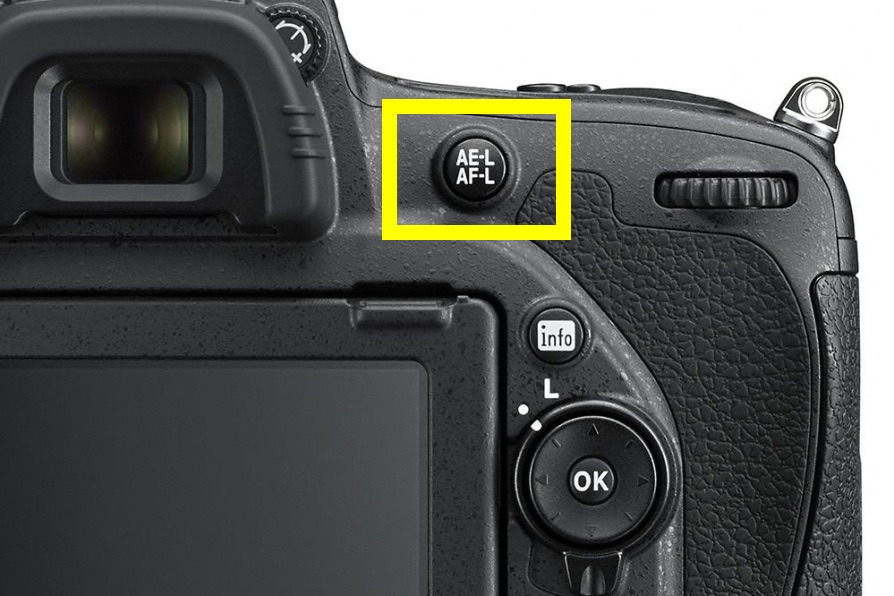
Exposure lock. After metering with the spot, you frequently need to recompose the frame. So that the exposure does not shift after recomposing (the camera keeps measuring until the shot is taken), there is a dedicated exposure lock button, AE-L (Automatic Exposure Lock). Press it and the camera holds the current exposure settings. This is useful not only with spot metering but also when you need a series of frames with identical exposure without switching to manual mode, which panoramas frequently call for.
By the way, holding the shutter button half-pressed also locks the exposure. Once you press it fully and the frame is taken, metering resumes, which is not always convenient (for example, when shooting panoramas).
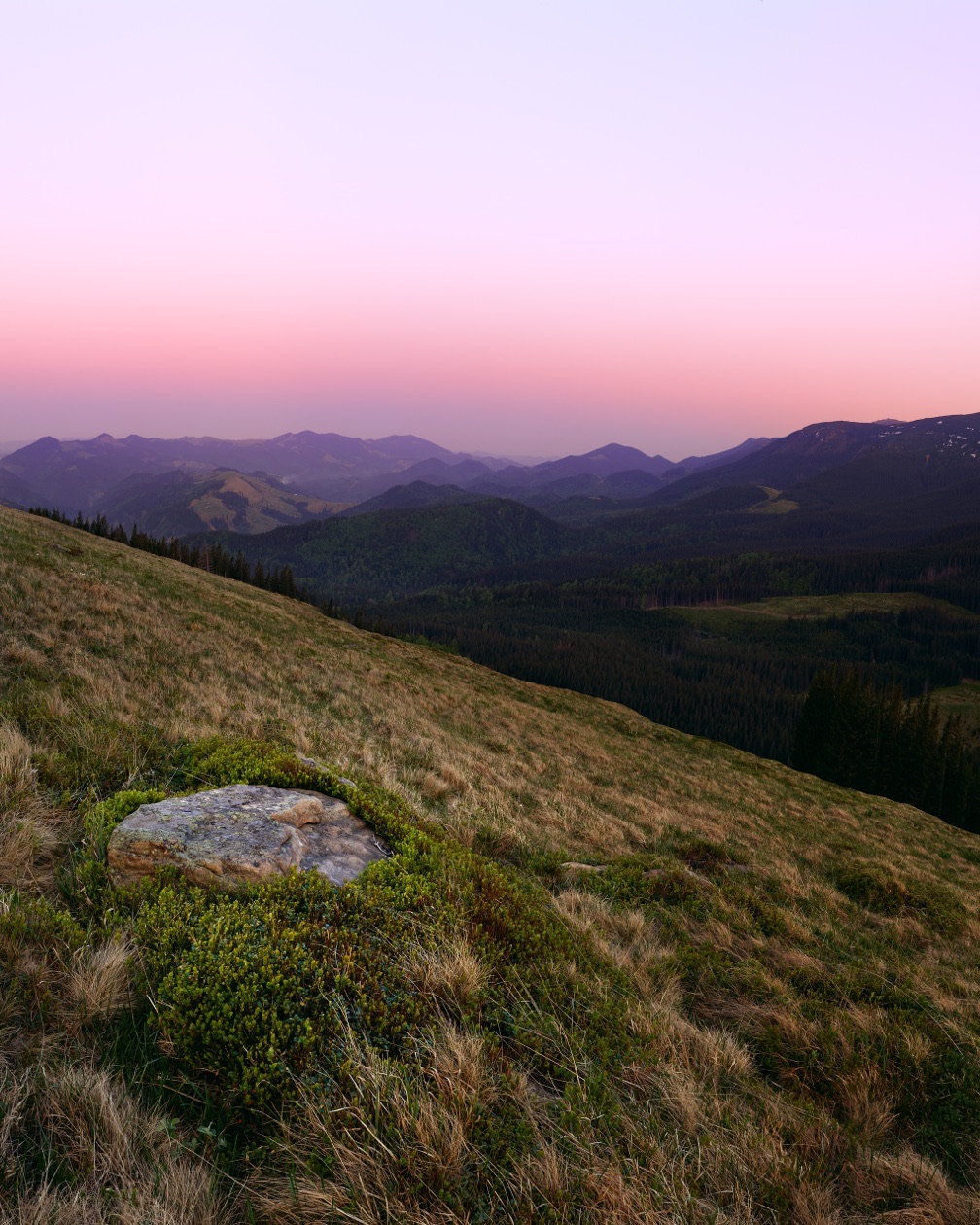
When should you use spot metering? First of all, when you are sure you can handle it, because precise readings require close attention to which object in the frame you are metering on. Photographers frequently use this mode for landscapes in difficult, contrasty light at sunrise and sunset. It also works in portraiture, metering precisely on the model's face.
Center-weighted metering


Center-weighted metering is the classic kind, inherited by today's cameras from the first film SLRs with built-in meters. In this mode, exposure is measured over a large area in the center of the frame, a circle of large diameter. The part right at the center gets higher priority (more "weight") when the data is analyzed. Today this mode is somewhat dated next to the smart, easy-to-use matrix metering on one side and the precise, flexible spot metering on the other. Like matrix metering, it is easy to use, but keep in mind that the exposure is measured not across the whole frame but only in its central part.
Highlight-weighted metering

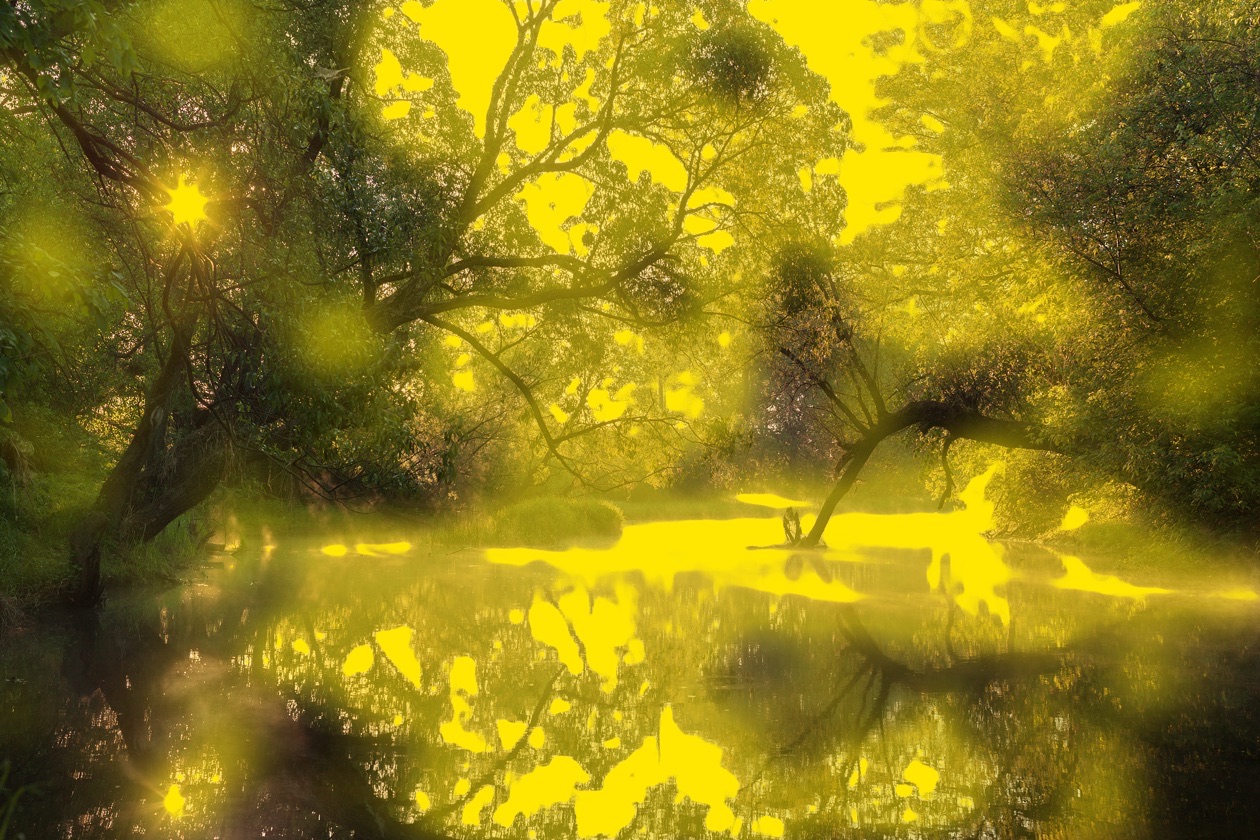
This is the newest metering mode. It appeared in the most current Nikon cameras of 2015, the D750 and D810. Experienced photographers know how unpleasant blown highlights are. In overexposed places, detail is completely lost, and in the picture the blown area looks like a plain white patch. Blown areas cannot be rescued even when processing the photo from RAW. RAW has a peculiarity: making the shadows lighter and pulling out detail there is very easy, but rescuing objects from blown areas is frequently impossible. Highlight-weighted metering was invented to keep blown highlights to a minimum. It protects your pictures from losing detail in the bright areas. Do not be surprised if the frames come out a little dark: that is the price of keeping detail in the highlights. And the brightness of a frame, as you know, is easy to correct in processing. Frames without blown highlights are much easier to process, and the result is better.
When should you use highlight-weighted metering? When you shoot RAW and plan to "develop" the photos in a RAW converter afterward, bringing them to perfection. Since I shoot only RAW, I have switched to this metering mode almost completely. It is easy and pleasant to work with in every shooting situation.
Why your eyes are not enough
The problem for plenty of photographers is that their pictures come out too bright one time and too dark the next. How do you make photos come out at the right brightness every time? Having learned to set the exposure parameters, a photographer still has to check the brightness of the images. The first way is visual: simply look at the photo on the camera screen. Current cameras in Live View or with an electronic viewfinder show, while you compose, the picture at the brightness it will have in the final photo.
But there is a problem: our eyes adjust to the surrounding light. When shooting in the dark, images on the camera screen look brighter than they really are; in bright light, pictures may look darker.
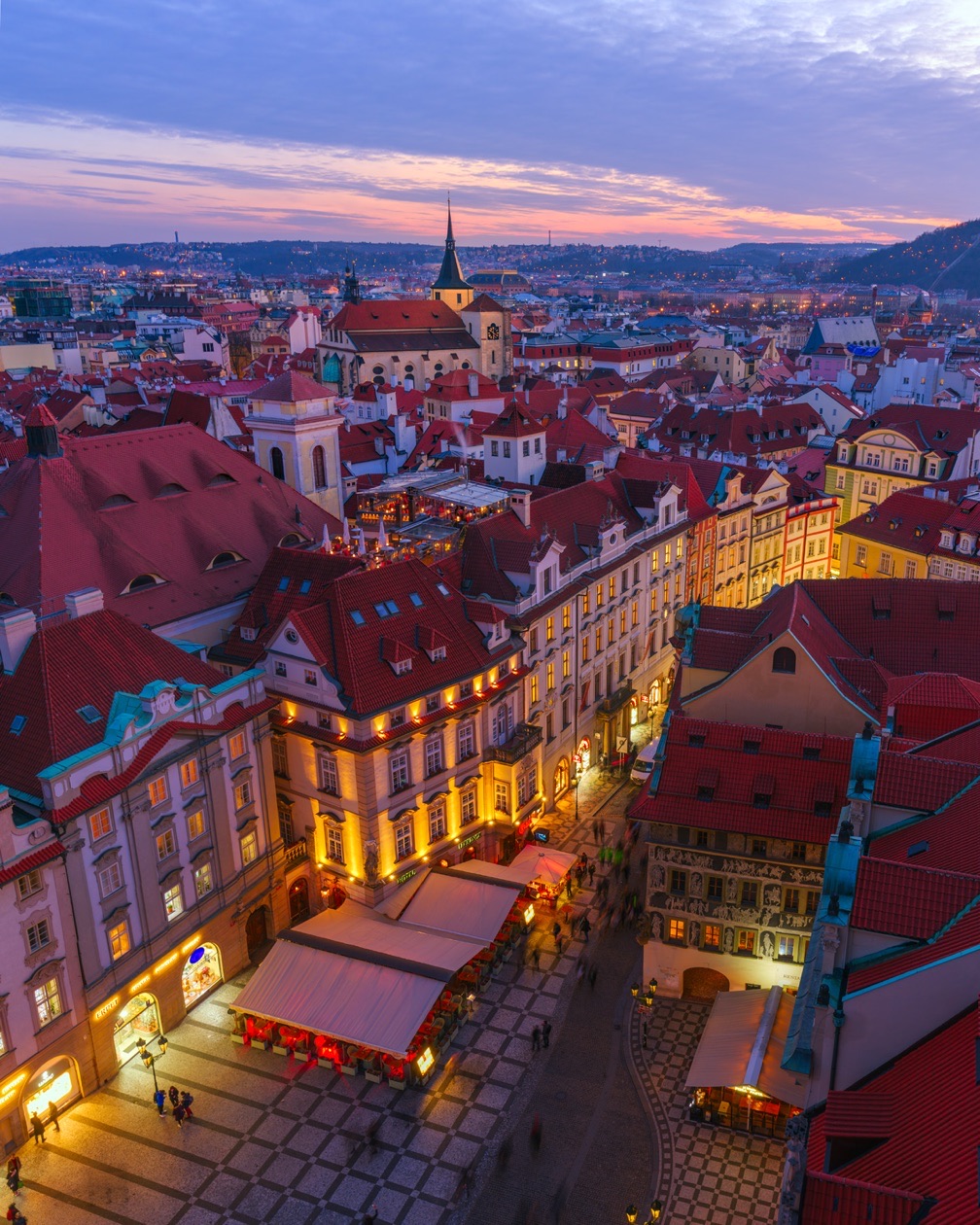
Hence the common beginner's mistake: frames that are too dark when shooting at night. While shooting in the dark, the frames on the camera screen look bright, but in the end they turn out dark.
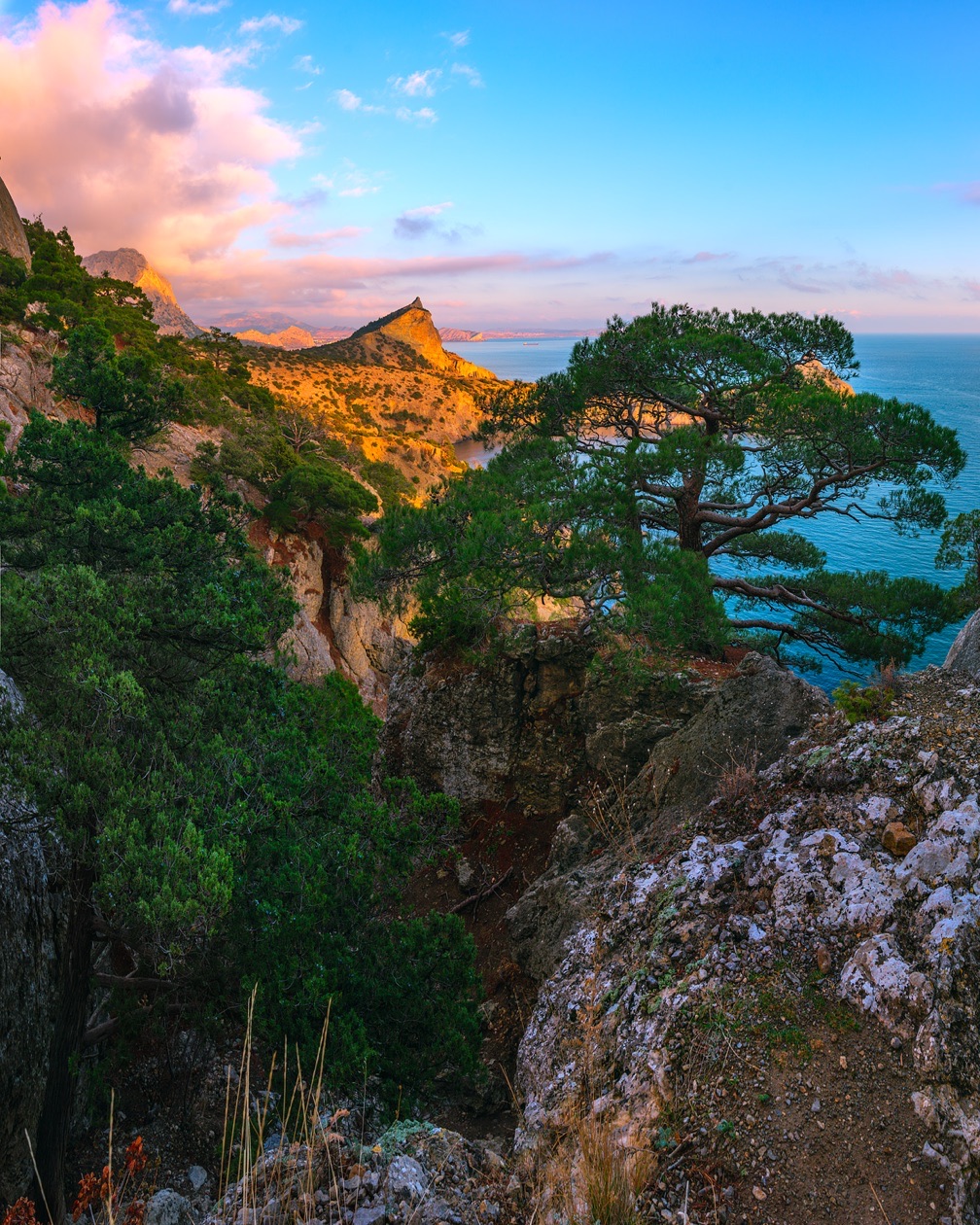
Besides, the eye cannot always see the loss of detail in bright or dark areas of the frame, and that frequently becomes a serious problem. Almost everyone has shot a sunset and got a plain white patch instead of a riot of color.
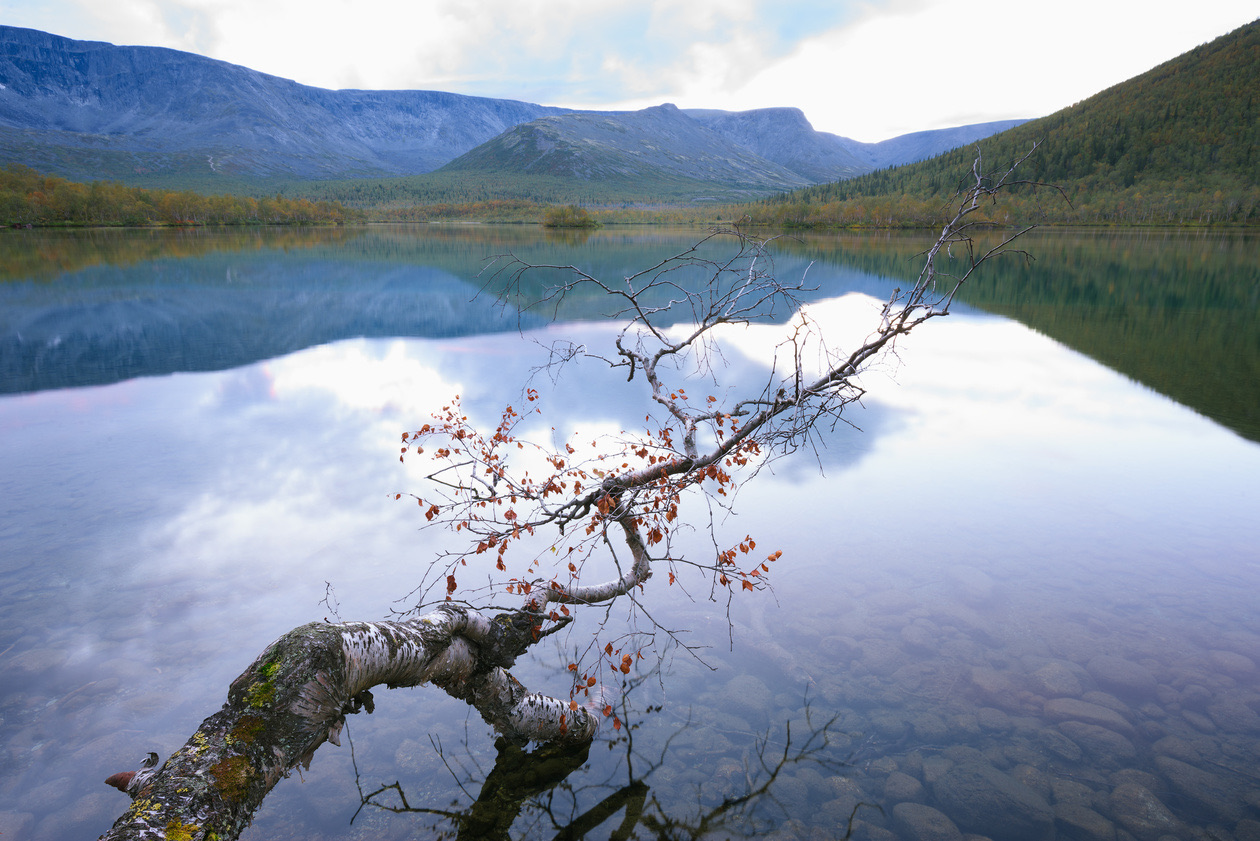
Remember that losing detail in the bright areas is especially dangerous: instead of detail, the photo gets white patches, and nothing can save the image even in processing. Detail can be pulled out of dark areas if you shoot RAW.
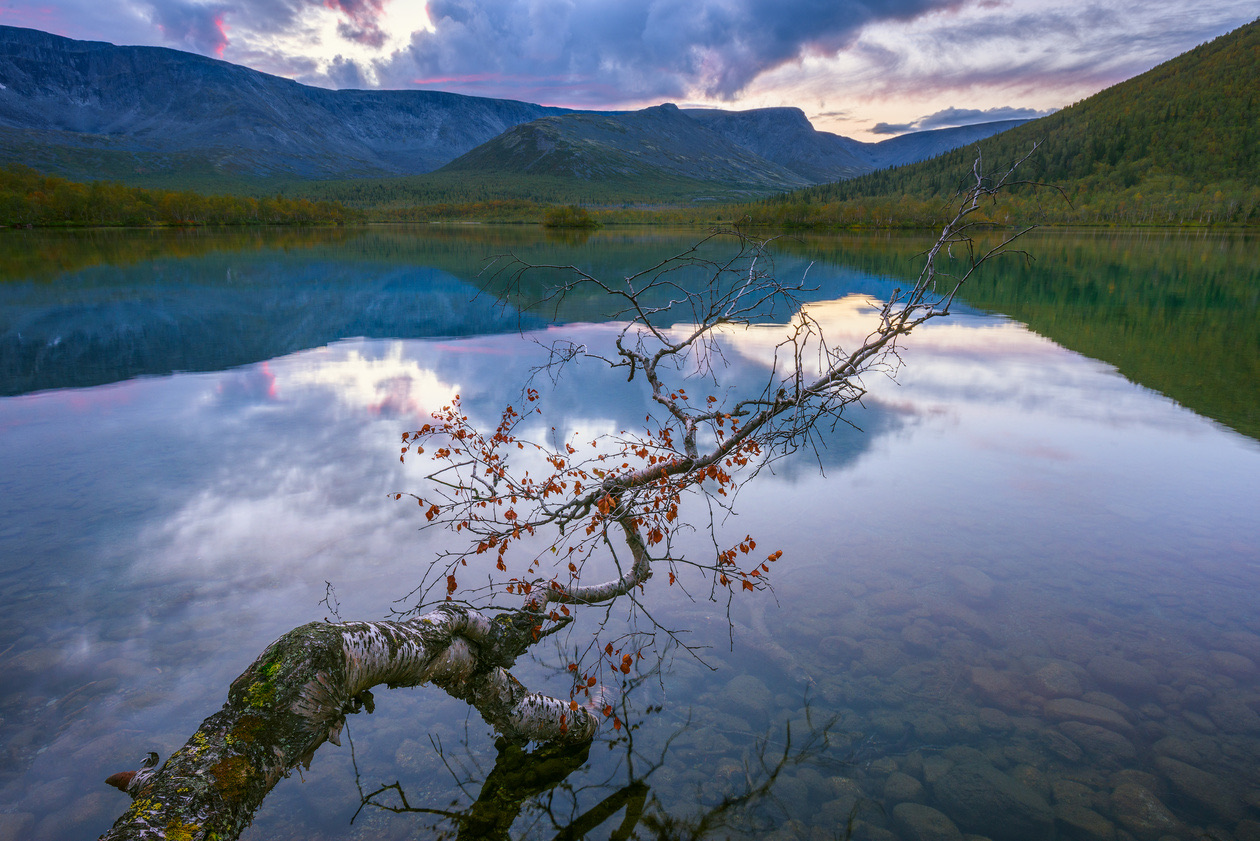
So a simple visual check of brightness does not always work. A photographer should master other ways of controlling exposure, to get images at the right brightness and avoid losing detail in the light and dark areas.
What is a histogram in photography?
How do you judge whether the exposure and color of a picture are right? How do you know whether your photo is bright enough or too dark? Of course, you can do it by eye, simply by looking at the photo. But the eye is an imprecise instrument, and human perception is subjective. Depending on the lighting, the background against which you view the photo and even your mood, you may see a photo slightly differently. The display you view it on makes its own corrections too: not every screen has perfect color. So how do you judge an image objectively? The image histogram comes to the rescue.
A histogram is a graph of how pixels of different brightness are distributed in an image. The horizontal axis shows the brightness of the tones in the image, from the darkest (black) to the lightest (white). Along this axis stand columns showing how many pixels have each brightness. The taller the column, the more pixels of that brightness in the photo.
You can view an image's histogram in any serious viewing or editing program, such as a camera maker's own RAW converter, Adobe Lightroom, Adobe Camera Raw, Phase One Capture One and others, and in graphics editors such as Adobe Photoshop. Being able to read a histogram also helps you master processing tools such as Levels and Curves.
But that is not all! You can see the histogram right in the camera at the moment of shooting. That makes it a universal tool that a photographer always has at hand. With it, you can judge whether the exposure of a frame is right while you are still shooting. There are histograms for each primary color of the image (red, green, blue), their combined RGB histogram, and a luminance histogram that measures the brightness of the frame. It makes sense to start with the luminance histogram, because it is the easiest to understand.
On the camera, there are usually two ways to see the histogram. The first is to view it for frames already taken: open a shot and choose the display mode (on Nikon cameras, with the up button on the multi-selector). One of the modes shows the histogram along with other useful shooting information. The second shows the histogram right as you shoot, in Live View or an electronic viewfinder, where the info button adds it to the screen.
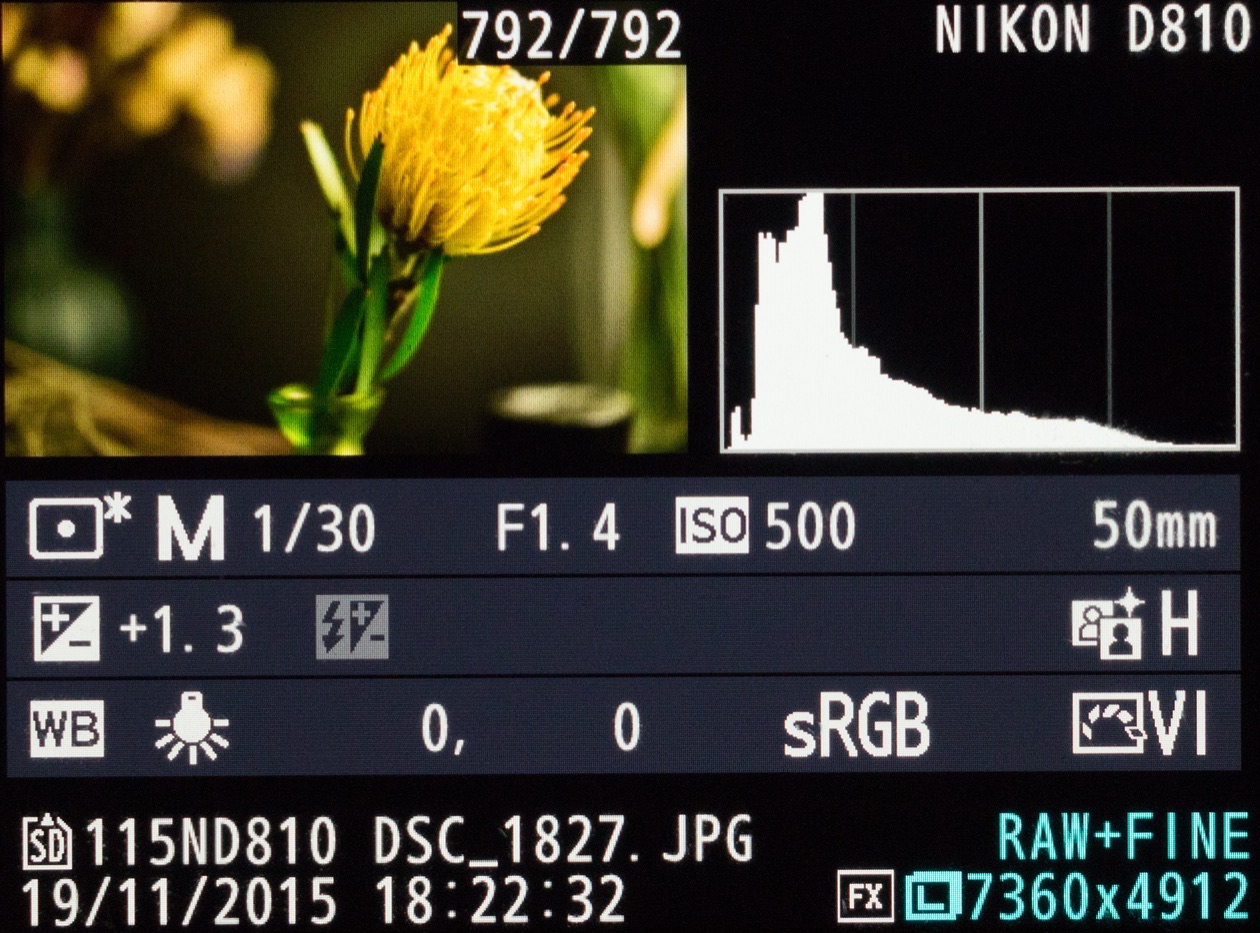
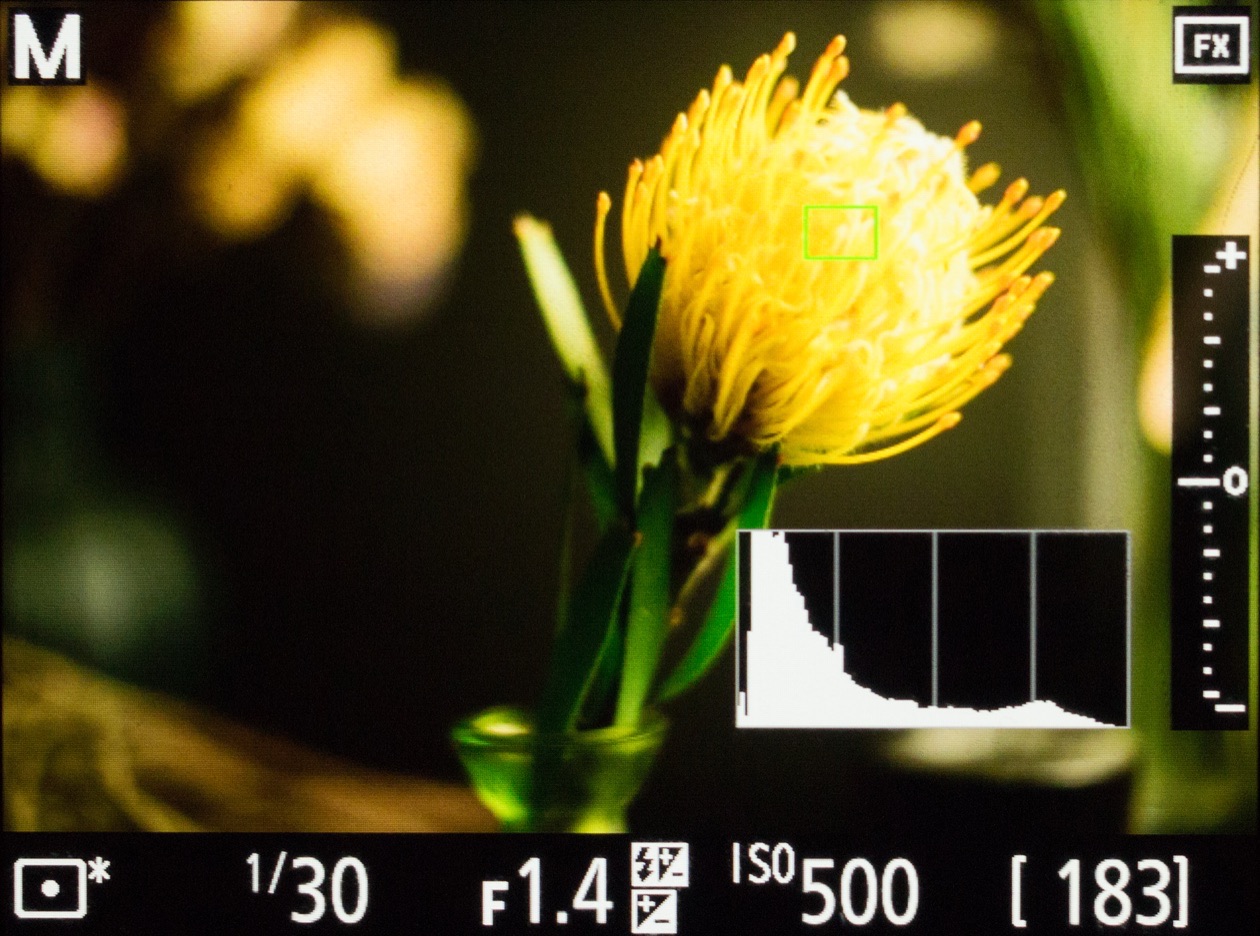
How to read a histogram
Each frame distributes its tones differently, so every image has its own unique histogram. Still, the shapes follow patterns.
Editor's note: the cases below at a glance.
| Histogram shape | What it means | What to do |
|---|---|---|
| Piled against the left edge | Underexposed, lost shadows | Make the frame brighter; RAW can recover a little |
| Piled against the right edge | Overexposed, blown highlights | Make it darker: blown highlights cannot be recovered |
| A narrow peak stuck to the right border | A blown area, such as the sky or a white shirt | Reduce exposure until the peak leaves the border |
| A hill in the middle, edges near both borders | A normal exposure with full contrast | Keep it |
| Fits inside the graph with empty space at both ends | Low contrast, but nothing lost | Raise contrast in processing |
| Two peaks at the ends | A contrasty scene, dark and bright areas | Normal; check neither peak is clipped |
| Leaning right by design | High key: light background, airy look | Acceptable; keep as much detail as you can |
| Leaning left by design | Low key: black background | Acceptable; keep as much detail as you can |
To understand how a histogram works in practice, let us first learn to judge the brightness and contrast of a photo from it, starting with frames that have technical faults.
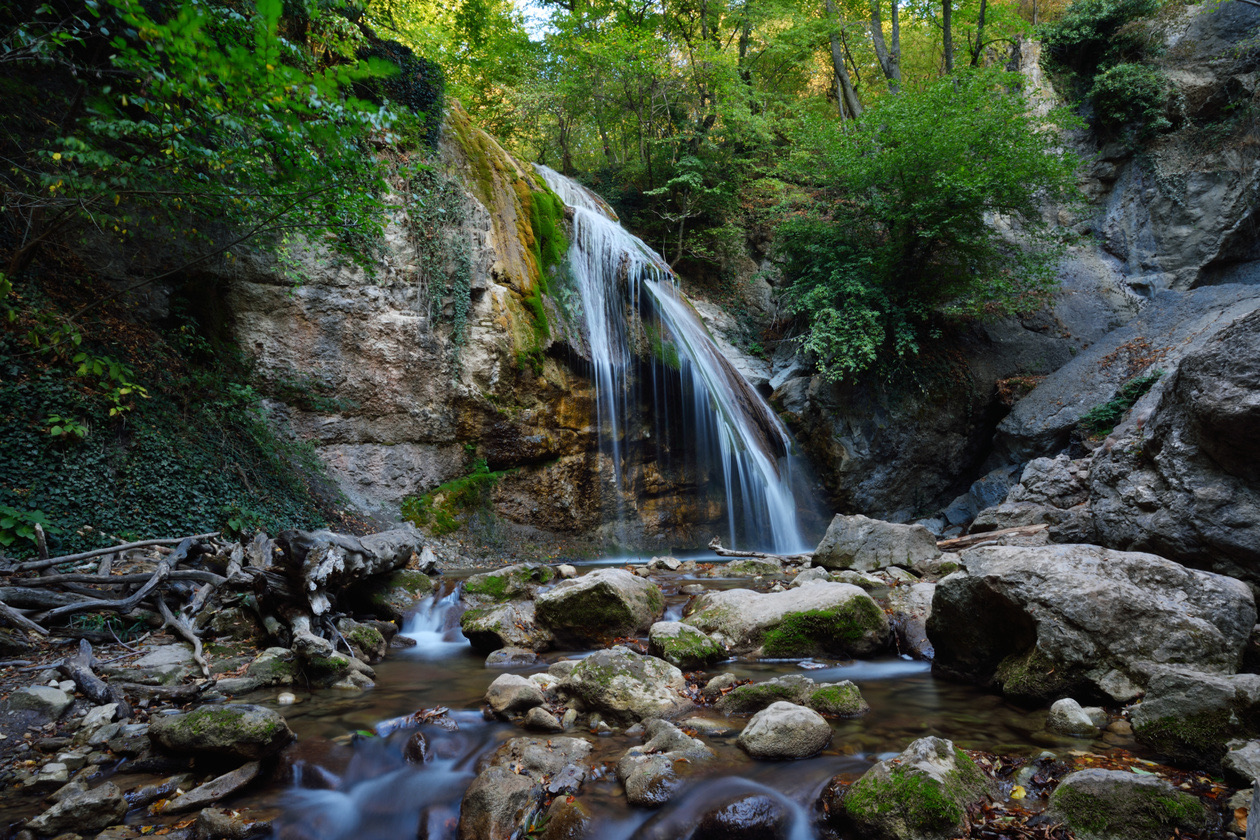
An underexposed (too dark) frame. The graph has slid to the left side, as if it had "leaked" out of the field to the left. A histogram piled up on the left means the photo is dominated by dark tones and has no light ones (the right side of the graph is empty). You can see that the photo has a lot of black patches without detail, and the histogram shows plenty of black too. This signals lost detail in the dark areas.
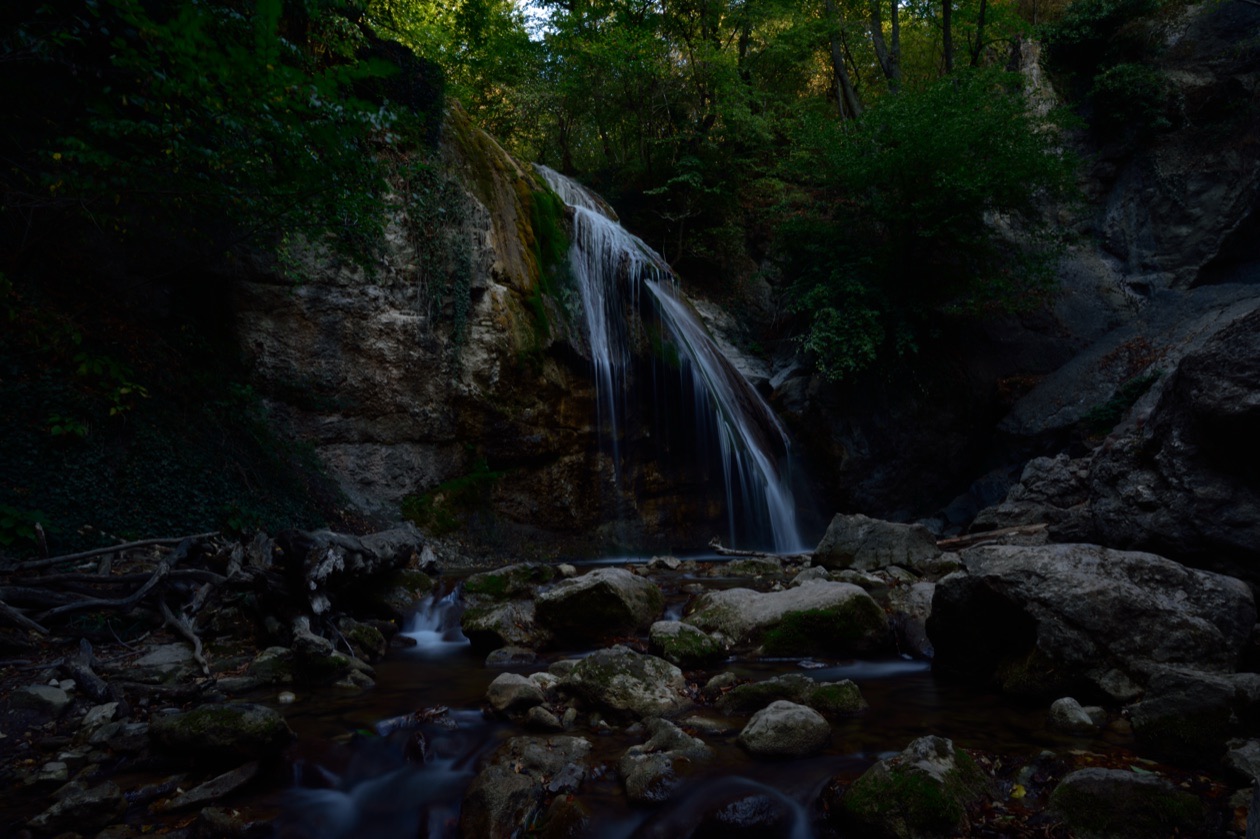
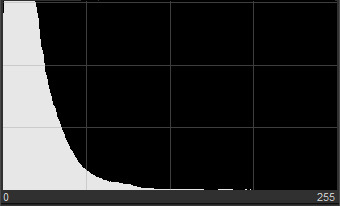
As a rule, a frame with such a histogram is a technical fault, an exposure error. In theory it can be fixed in processing on a computer, especially if it was shot in RAW. If you see a histogram like this on the camera while shooting, it is time to think about making the frame brighter.
An overexposed (too light) frame. The opposite situation: the histogram has "crawled" to the right and piled up against the right border. This signals lost detail in the bright areas of the frame. Instead of detail in different tones, the bright parts of the photo show only white patches, in the sky and on the water alike, and the histogram says so too.
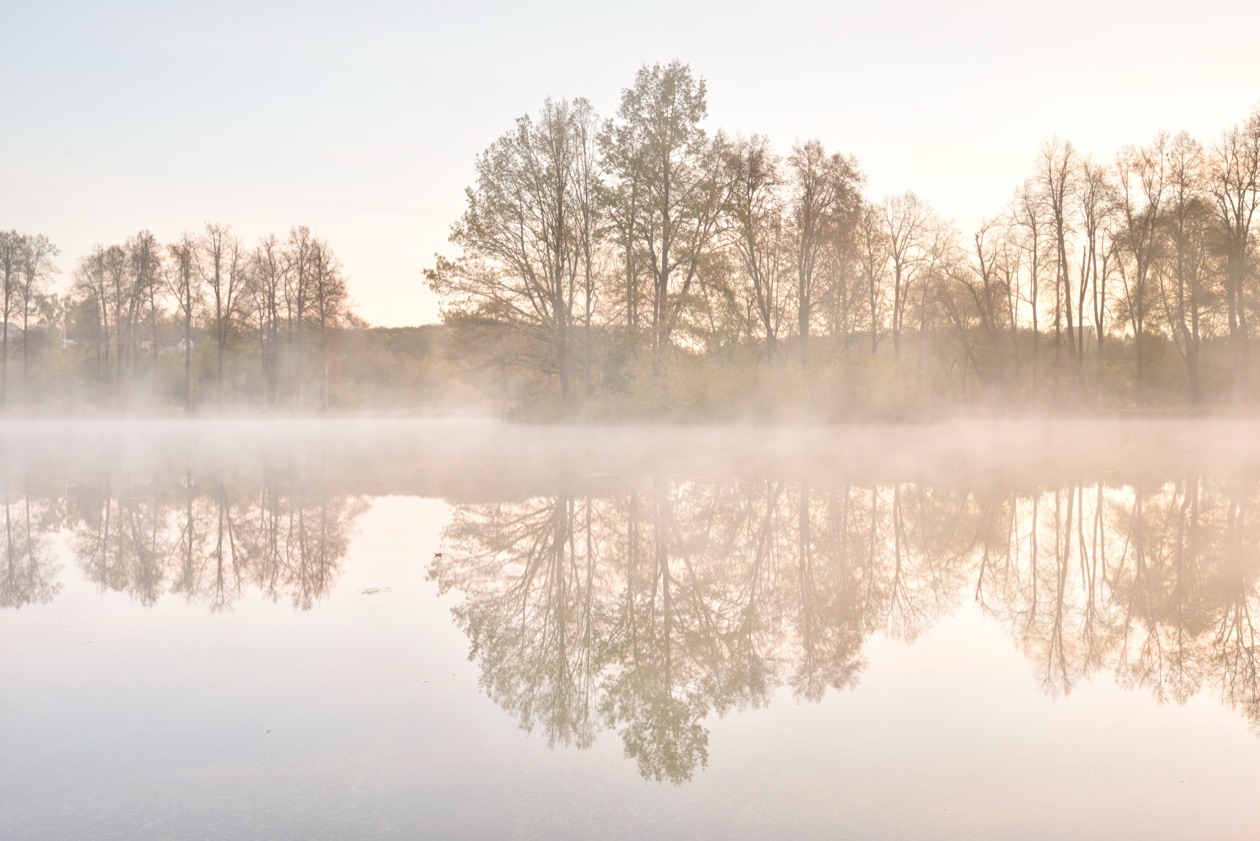
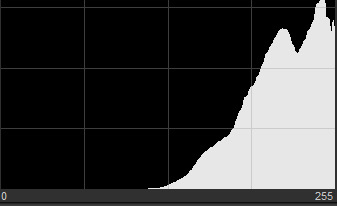
Pictures with such a histogram are usually technical faults too: an exposure error happened here as well. But while dark frames can be rescued when processing RAW, overexposed shots like this hardly respond to editing. You are unlikely to pull detail out of blown highlights, and the shot will most likely go to the trash.
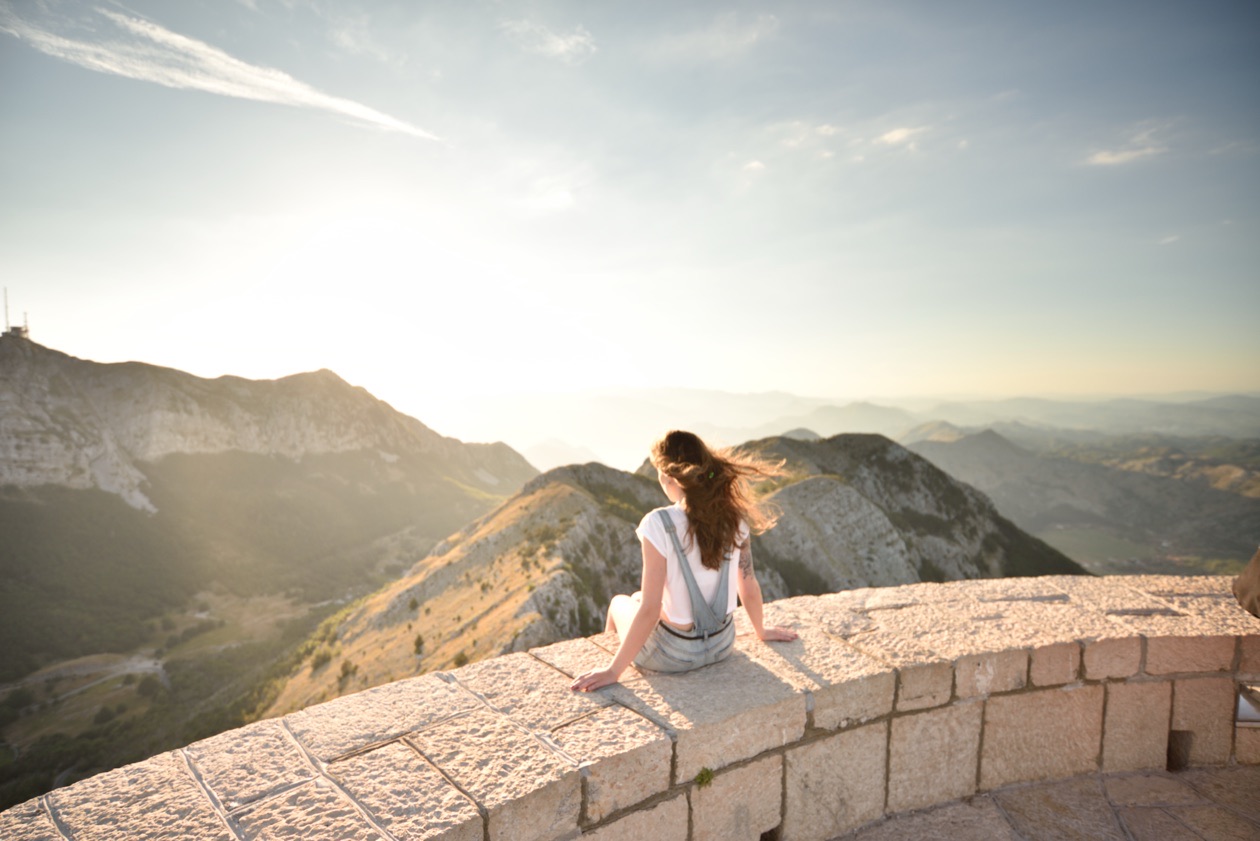
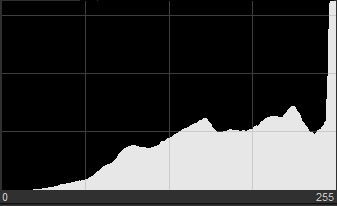
Another example of a frame with lost detail in the bright areas: instead of parts of the sky and the woman's white T-shirt, there are whitish patches. On the graph they correspond to a peak of the histogram "stuck" to the right border. On a computer such a blown area is easy to spot, but while shooting, judging the frame by eye on the small camera screen, it is easy to miss. Even so, this frame cannot be rescued, and strictly speaking it is also a technical fault. Blown highlights are best avoided while shooting: look at the histogram right after each shot and use the highlight warning described below.
A "normal" picture. Now that we know what histograms of shots with lost detail in the bright and dark areas look like, let us look at a correctly exposed frame. Its histogram looks like a hill, or like the boa constrictor that swallowed a hat. Such a histogram shows that midtones dominate the picture, rather than dark or light areas. At the same time, the edges of the histogram are close to the borders of the graph, so the photo has pixels of both the darkest and the lightest tones. Such a frame usually looks contrasty and expressive, and it is excellent for processing.
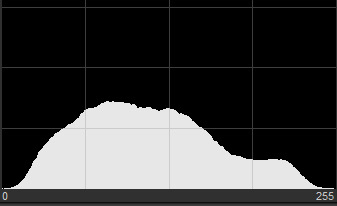
A low-contrast frame. Its histogram fits entirely inside the graph, while the field is empty at the edges, right and left. This means the photo has neither truly dark nor truly light areas. Still, such a histogram shows the frame is correctly exposed and quite suitable for processing, in which you can, among other things, raise the contrast.
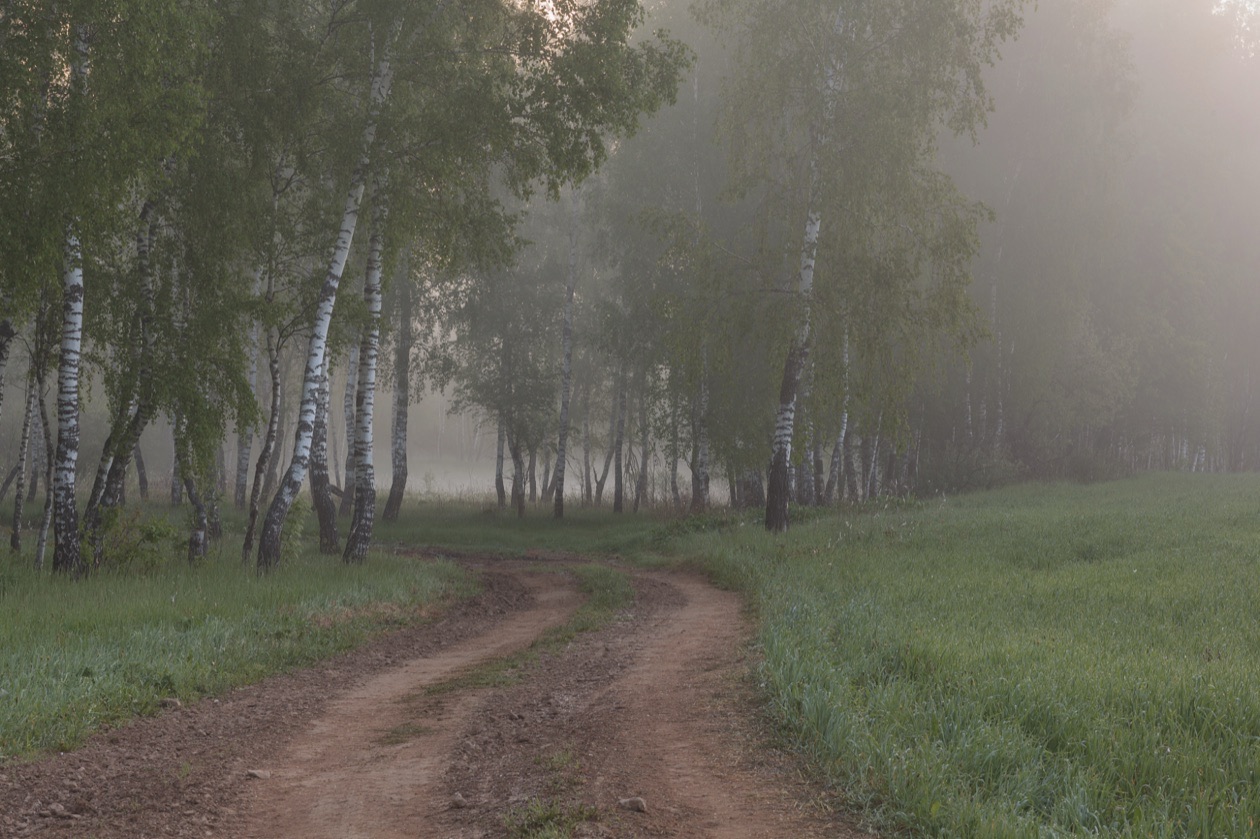
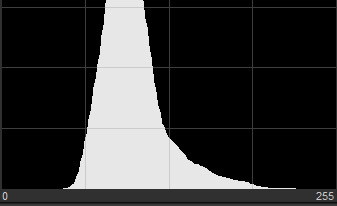
You cannot always get the contrast you want while shooting. A lot depends on the lighting, the weather and the lens you chose. The main thing is that all the detail in the image is preserved and nothing is lost beyond the edges of the graph. To get more contrast already while shooting, you can work with the camera's picture styles (Picture Control on Nikon), choosing, for example, Vivid, which raises both the contrast and the color saturation.
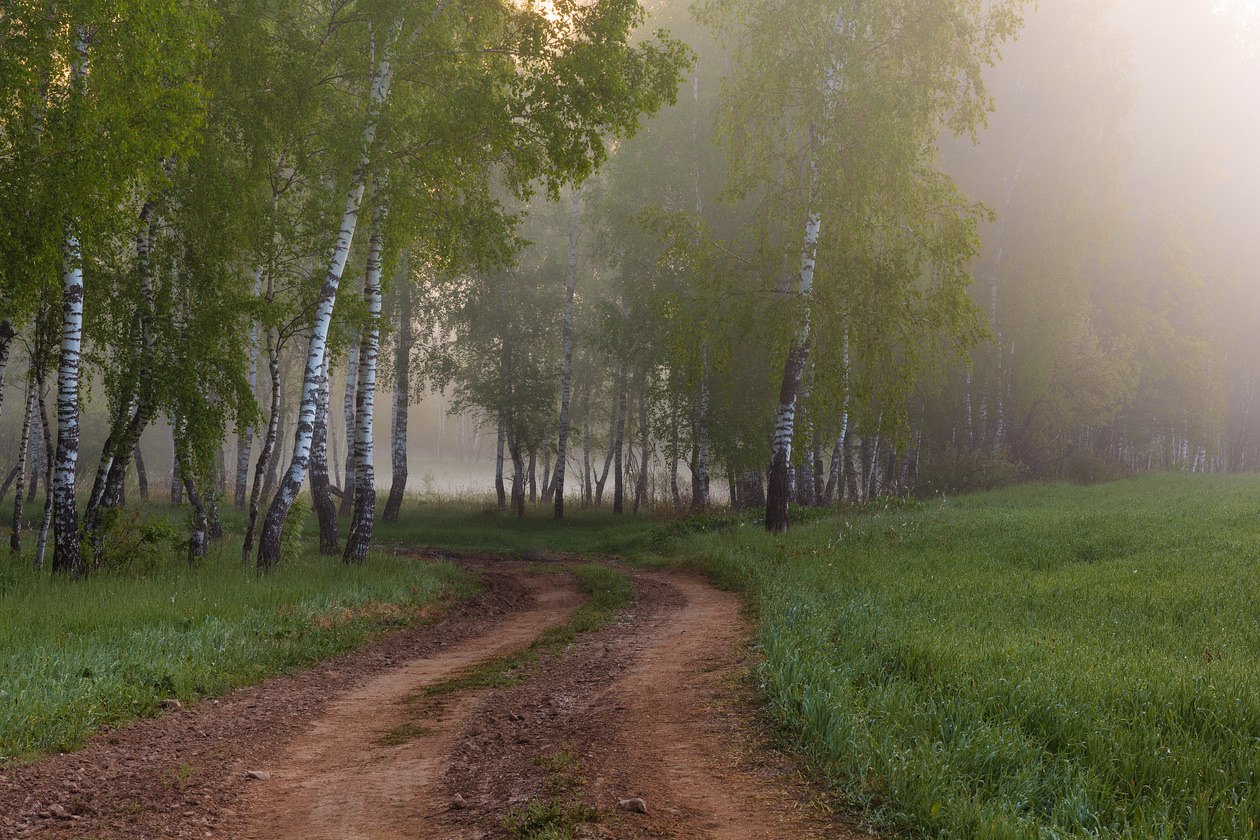
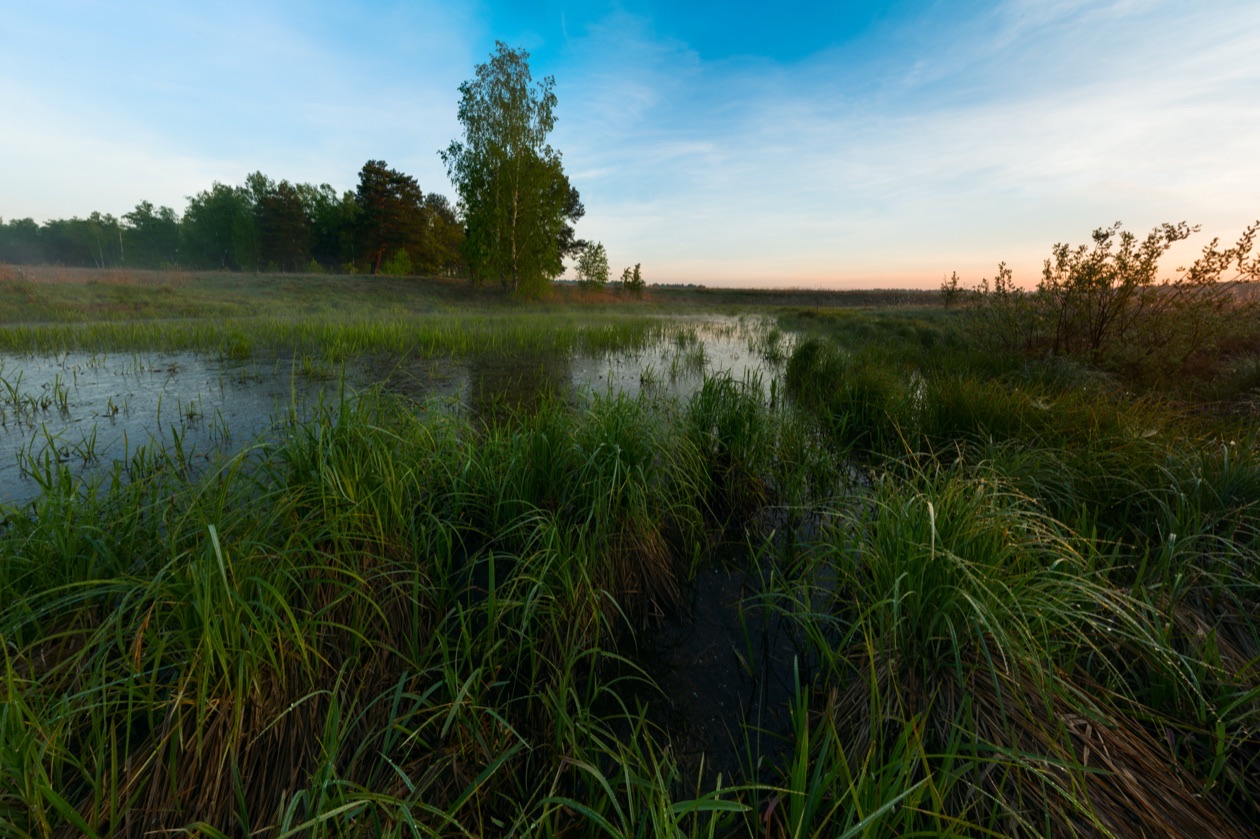
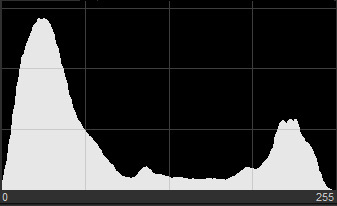
Two or more peaks in one histogram are entirely possible. This frequently happens with contrasty subjects that have plenty of both dark and light tones and little room for midtones. Here the left peak comes from the dark grass and the right one from the bright sky.
High-key shooting. High key means frames in a light tonality: a white (or at least light) background and an overall light range. Typical subjects are objects on a white background, people against the sky or in backlight. The histograms of such frames can shift well to the right, and a small loss of detail in the bright areas is quite acceptable: the photographer deliberately sacrifices it for a light, airy atmosphere. When you photograph a high-key scene, do not panic if the histogram "runs away" to the right. For creative photography, though, I advise shooting such scenes with the most correct exposure possible, keeping all the detail in the photo. The brightness can be raised in processing.
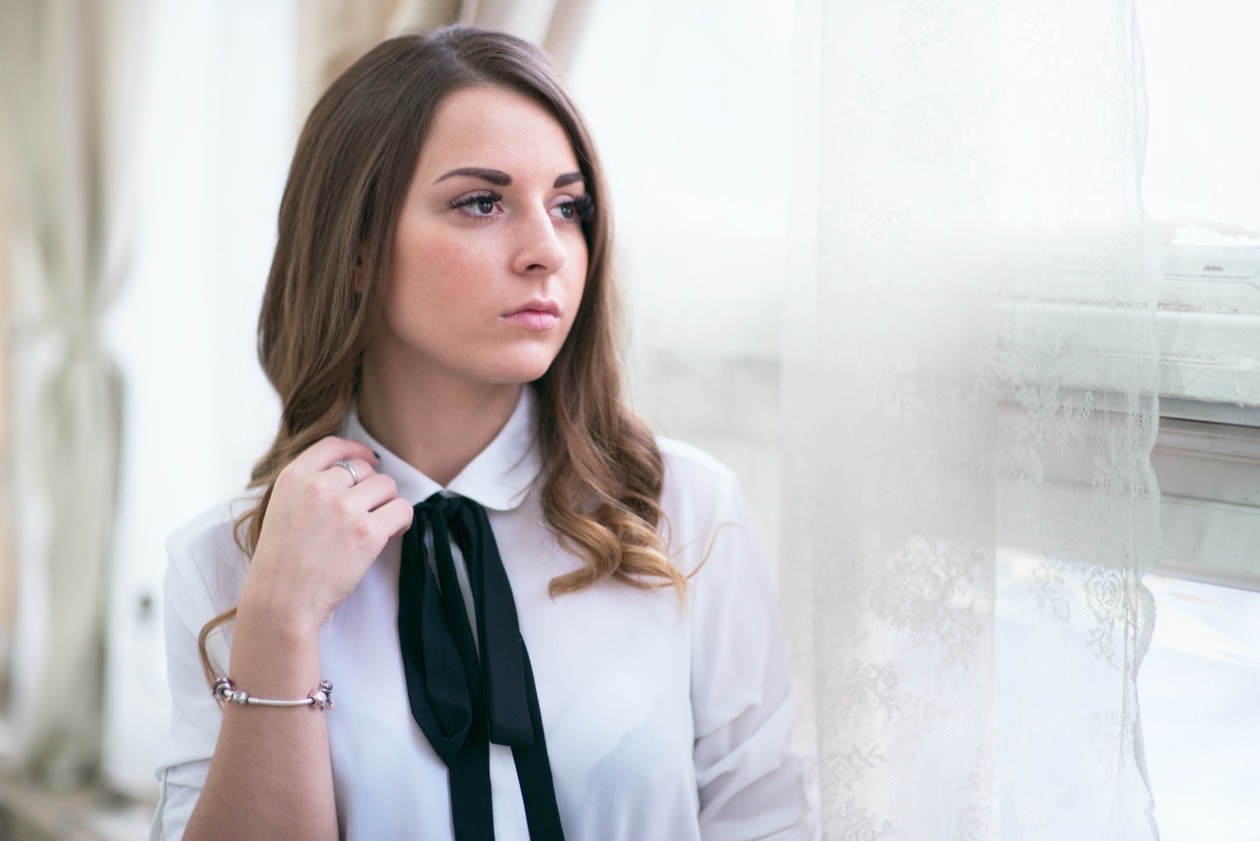
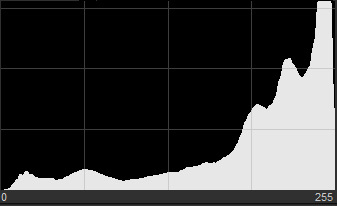
Low-key shooting on a black background shows the opposite: the histogram "runs away" to the left. If you want a frame on black, be ready for it. For comfortable processing, I advise keeping as much detail in the picture as possible.

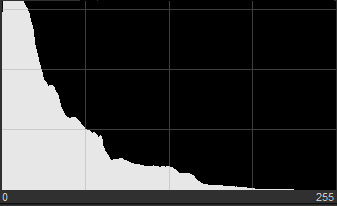
To train yourself to read histograms, open a folder with your own (or anyone else's) photos and study their histograms. Analyze how light and dark tones and midtones appear on the histogram and compare them with the photos themselves. You will master the topic quickly that way.
The histogram is a great helper on the way to good frames. But it is just as important to understand that it gives the photographer only reference information about the state of the image. If you do creative photography, only you decide what your frame should be! Do not be afraid to experiment, but do it consciously. Remember that sometimes only the creative genius of the photographer separates a technical fault from a masterpiece.
Using the histogram while you shoot
The histogram helps you take frames without losing detail in the bright or dark areas, which is especially important when you plan to process the pictures on a computer and convert them from RAW. If separate overexposed or too-dark areas appear in the photo, we will also see them on the graph, as separate peaks "stuck" to the right or left border. Separate blown spots are also best avoided, especially on the main subject (a model's face, for example).
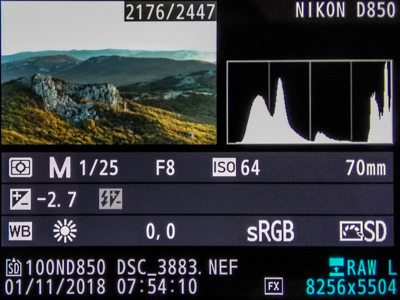
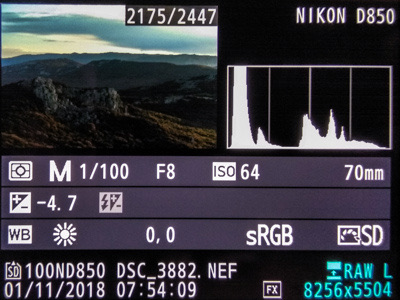
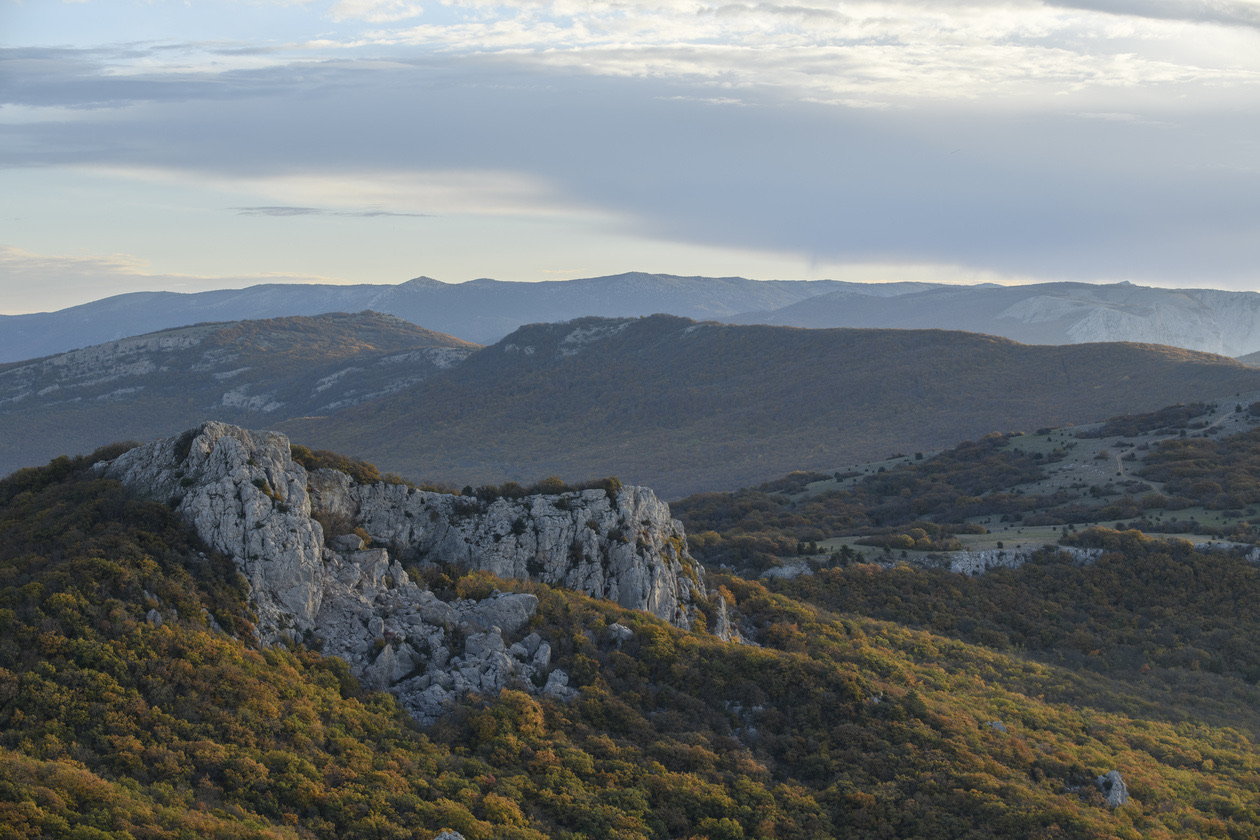
However, the graph is not always convenient to work from: it is not always clear where exactly the overexposed area is. The next tool on our list helps with that.
Highlight warnings and zebras
The highlight warning is a convenient tool that every advanced photographer should keep switched on. The idea is very simple: when you review a shot, its overexposed areas start to blink. The camera finds them itself and shows them to the photographer. If the blinking areas are not important to the subject, for example a highlight in the background of a portrait, the situation is acceptable (though not ideal). But if an important part of the subject starts to blink, change the camera settings or choose different lighting altogether.
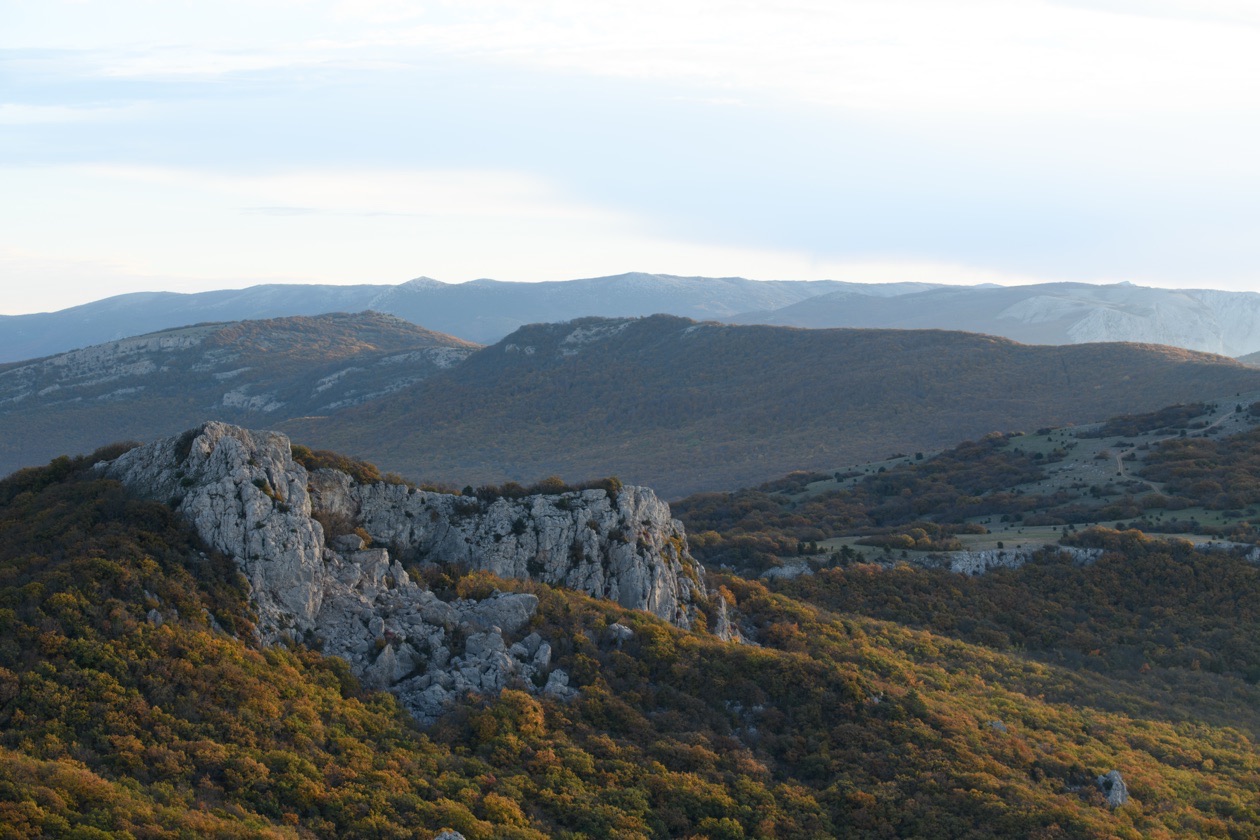
The frame below was shot against the light from a window, and the detail outside the window was lost. But the subject did not suffer, so this blown area is acceptable.
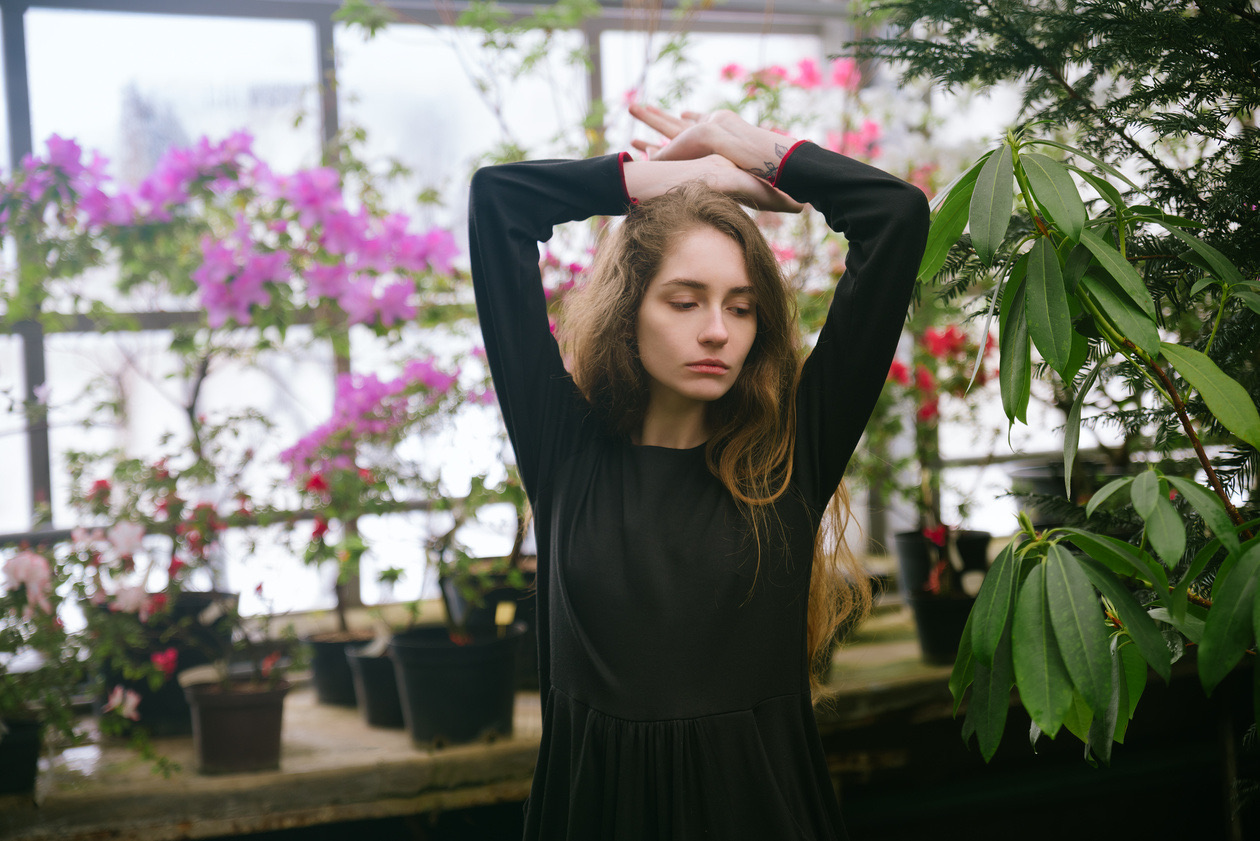
The highlight warning is an extremely convenient tool that has saved plenty of frames. Use it and you will have fewer exposure faults. On Nikon cameras it is switched on in the playback menu, under the playback display options, by ticking the highlights item; the up arrow on the multi-selector then selects the highlight display. Other cameras have a similar item in their playback settings.
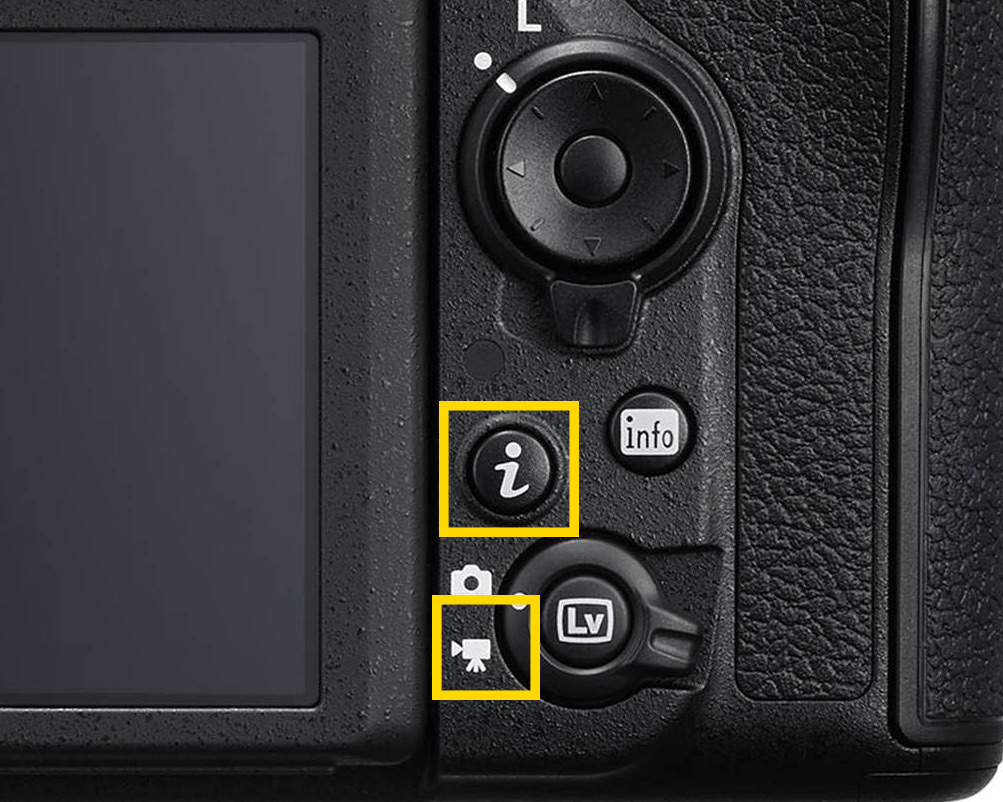
Zebra. The previous tool has only one drawback: it works only for a frame already taken. How do you see potentially blown areas before pressing the shutter button? A tool from the world of video, which photographers increasingly use too, helps here: the zebra. Among Nikon cameras of 2018 it was available on the D850 (in Live View with video mode on) and on the then-new Z 7 and Z 6 mirrorless cameras. Editor's note: Sony lists a Zebra Display setting in its camera menus (Sony Help Guide, ILCE-7SM3).
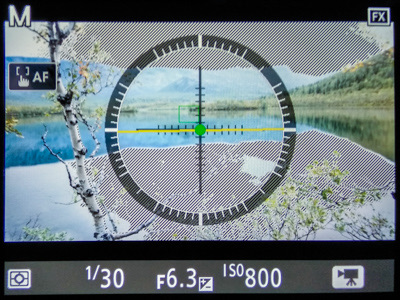
With the zebra on, overexposed areas are covered with stripes already while you compose the frame. The function is equally handy for photos and for video.
Rule of thumb: Meter with matrix (evaluative) metering by default, switch to spot when the subject and background differ strongly in brightness, and after every important shot check the histogram and the highlight warning. A peak stuck to the right border on the main subject means reduce exposure; everything else can wait for processing.
How to check exposure, step by step
Editor's note: the three lessons reduce to one routine.
- Set matrix (evaluative, Multi) metering and take a test frame.
- If the scene is mostly very light or very dark, apply exposure compensation, or switch to spot metering and meter on a midtone, then lock it with AE-L before recomposing.
- Check the histogram: nothing piled against the right border on an important part of the frame.
- Check the highlight warning to see where any blown areas are; with live view or an electronic viewfinder, use the zebra before the shot.
- Shoot RAW if you can, and if you do, consider highlight-weighted metering to protect the brightest areas.
Verdict
Remember: your eyes can deceive you, and difficult light can bring unpleasant surprises. To avoid them, do not only judge the frames visually on the camera screen but also use the "instrumental" methods of exposure control. Your pictures will become even better.
Editor's note: of the tools on this page, the histogram and the highlight warning do the most for the least effort: they cost nothing, exist on every current camera, and catch the one mistake that cannot be fixed later, blown highlights. Metering modes matter less once you check the result this way. The settings the meter feeds into are covered in aperture priority, shutter priority or manual, what ISO is and what shutter speed is.
Frequently asked questions
- What is metering in photography?
- Metering is how the camera measures the brightness of a scene to set the exposure. The built-in meter reads the light reflected from the subject, using hundreds to tens of thousands of sensing elements depending on the model, and assumes the scene is mostly midtones. Metering modes decide which part of the frame the camera reads and how much weight each part gets.
- What are the metering modes on a camera?
- Most cameras offer matrix metering (Nikon; called evaluative on Canon and Multi on Sony), which reads the whole frame; center-weighted metering, which reads a large central circle; and spot metering, which reads a small spot of about 1.3 to 1.5 percent of the frame. Advanced Nikon bodies such as the D750 and D810, and Sony bodies such as the A7R IIIA, add highlight-weighted metering, which protects the brightest areas.
- Which metering mode should I use?
- Start with matrix or evaluative metering: it suits reportage, walks, family shoots and travel, and it gets the exposure right in most scenes. Switch to spot metering for high-contrast landscapes at sunrise or sunset and for portraits metered on the face. If you shoot RAW and process every frame, highlight-weighted metering keeps detail in the bright areas.
- What is a histogram in photography?
- A histogram is a graph of how many pixels the photo has at each brightness. The horizontal axis runs from black on the left to white on the right, and the height of each column shows how many pixels have that brightness. A graph piled against the left edge means lost shadows; piled against the right edge means blown highlights.
- What does a good histogram look like?
- For an ordinary scene, a hill in the middle of the graph whose edges come close to both borders without climbing up them, so the photo has deep shadows and bright highlights with detail kept in both. There is no single correct shape: a high-key photo on a white background leans right and a low-key photo on black leans left by design.
- What are highlight warnings and zebras?
- Highlight warnings, frequently called blinkies, make overexposed areas flash in black when you review a shot, so you see exactly where detail is lost. Zebras do the same before you press the shutter by covering overexposed areas with stripes in live view or the electronic viewfinder. Both matter most when the blown area is on the main subject, such as a face or the sky.
Sources
- Metering mode, Wikipedia (2026)
- Image histogram, Wikipedia (2026)
- Zebra patterning, Wikipedia (2026)
- How do I change the metering mode? (EOS 5DS / EOS 5DS R), Canon (2026)
- ILCE-7RM3A Help Guide: Metering Mode, Sony (2026)
Originally published on Prophotos.ru: part 1, part 2, part 3.